AI Usage & Controls
What Zolvio’s AI agent does, how limits work, and how to stay in control.
The AI Agent
Zolvio’s AI agent reviews your page screenshots and writes guided fixes. It also sorts audit findings, writes explanations, heatmap and A/B insights, survey themes and product descriptions. Every paid plan uses the same AI; plans differ only in how much AI you can use. The Free plan doesn’t include AI.
Where AI Is Used
- Audits: the AI agent reviews desktop and mobile screenshots of key pages, then sorts the findings and writes the explanations (see Audits)
- Guided Fixes: the AI agent reads the theme files an issue touches and writes the steps and code (see Guided Fixes)
- Heatmaps: AI insights on top of the computed heatmap data (see Heatmap Insights)
- A/B Testing: a plain-English summary of what happened and what to try next (see A/B Testing)
- Surveys: group open-text answers into themes (see Surveys)
- Product descriptions: write product and collection descriptions from your store data (see Content Generation)
Turning AI On or Off
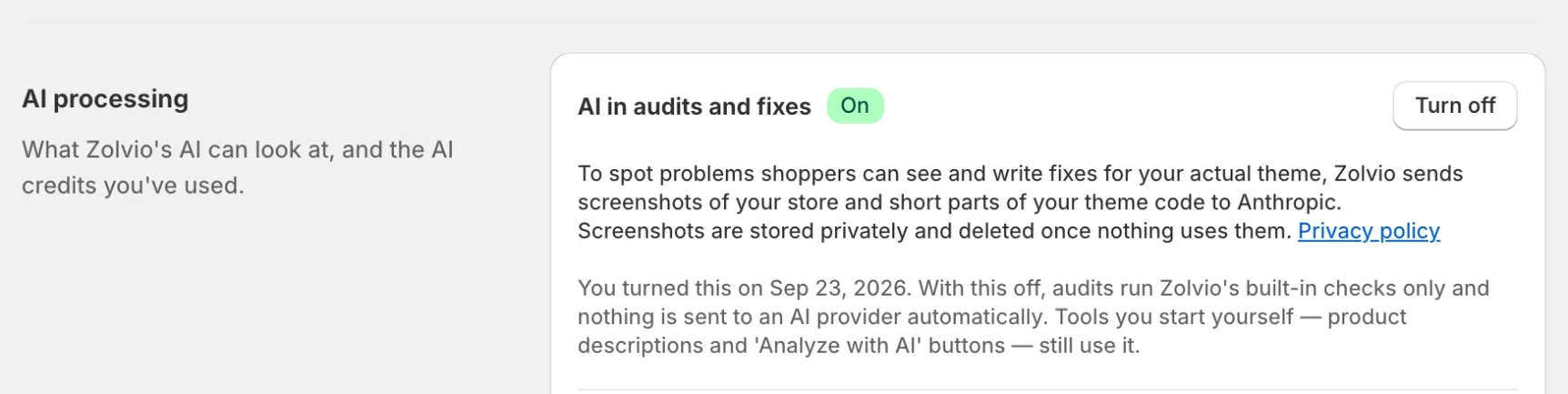
AI in audits and fixes under Settings → AI processing controls whether Zolvio may send screenshots of your store and short parts of your theme code to its AI provider. With it off, nothing is sent to an AI provider: audits run Zolvio’s built-in checks only, and guided fixes can’t be written.
How Limits Work (High Level)
Zolvio enforces plan-based limits and spend caps to protect you (and us) from runaway usage:
- Daily caps: prevent sudden cost spikes
- Monthly caps: keep usage aligned with your plan
- An audit allowance: audits have their own allowance on your plan, separate from your AI credits
- Task budgets: different AI tasks have different size and cost ceilings (e.g., audits vs. short summaries)
AI writes instructions, not theme changes
Spend Caps and What Happens When You Hit Them
When you reach an AI cap, Zolvio will block new AI calls for the remainder of the window. You can still use the product — you just won’t get new AI-generated outputs until the cap resets.
- You can keep using recordings, heatmaps, and A/B test reporting based on computed data.
- AI-powered extras (like summaries or survey themes) may show a message such as “AI temporarily unavailable due to limits.”
If you see surprising usage
Where to See Usage
Settings → AI processing shows the AI credits you’ve used today and this month, and how many cached results saved credits. Credits cover fixes, insights and survey analysis; audits have their own allowance on your plan.
Pausing AI (Per Store)
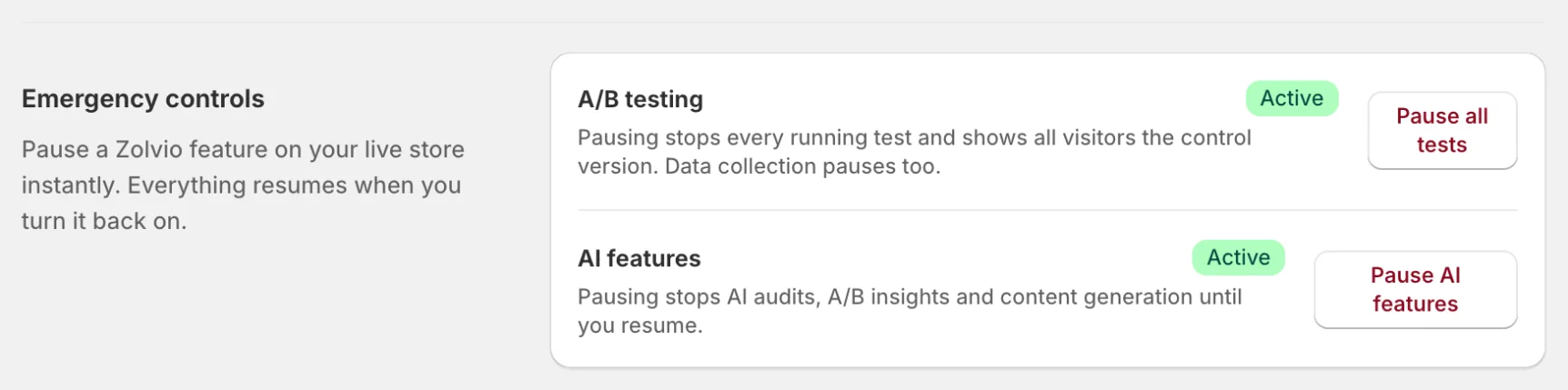
You can pause all AI features for your store at any time under Settings → Emergency controls → Pause AI features (an optional reason is kept for your records). While paused, Zolvio will not call AI providers; cached AI results may still be shown at no additional cost. Click Resume to turn it back on.
Why You’re Seeing “Cached” Results
Some AI tasks are cached to improve reliability and cost efficiency. If you trigger the same request again (same inputs), you may see a cached result instead of a new AI call. This is intentional and helps keep the system stable.
Reliability: Schema-Validated Outputs
Zolvio uses schema-validated AI outputs (built with PydanticAI) for key workflows. That means AI responses must match a strict structure (fields, types, limits). If the output doesn’t validate, Zolvio retries or falls back — instead of showing malformed or “weird” results.
Privacy Notes
- Emails and phone numbers are removed from text before it is sent to the AI provider.
- URLs are stored as path-only (no query strings) in analytics and AI pipelines.
- AI prompts are minimized and bounded; long HTML is truncated and sanitized.
- Screenshots are stored privately and deleted once nothing uses them.
See Privacy & Compliance for merchant responsibilities and best practices, and the Privacy Policy for the list of subprocessors.