Getting Started with Zolvio
Install Zolvio from the Shopify App Store, switch on a few settings, and run your first audit.
Installation
- Open Zolvio on the Shopify App Store
- Click Install and approve the permissions Zolvio asks for
- Open Zolvio from the Apps menu in your Shopify admin
Set up before your first audit
Do these in order. Each one takes a minute:
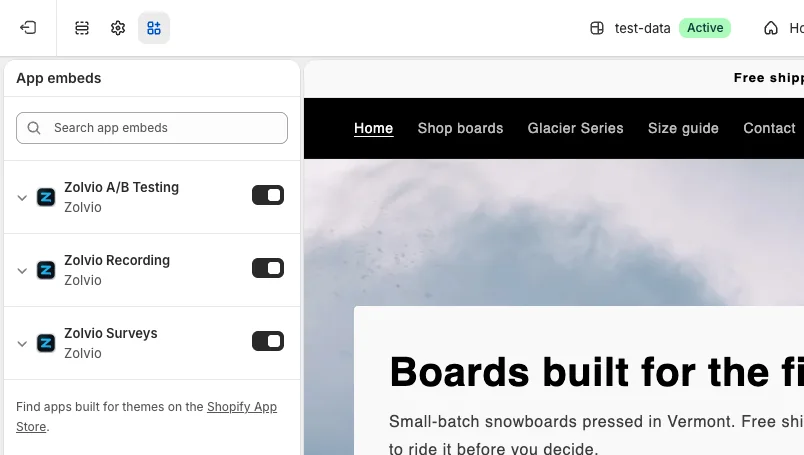
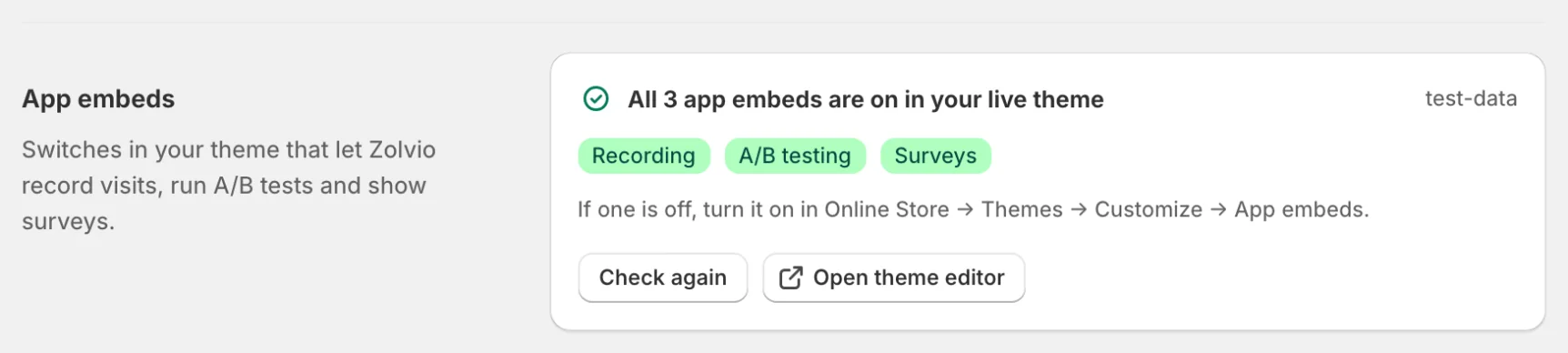
- Turn on the app embeds - In Zolvio, open Settings → App embeds and click Open theme editor. Under App embeds, turn on Zolvio Recording, Zolvio A/B Testing and Zolvio Surveys, then click Save. Back in Zolvio, the section says all 3 app embeds are on in your live theme.
- Turn on AI in audits and fixes - In Settings → AI processing, click Turn on. With it off, nothing is sent to an AI provider: audits run Zolvio’s built-in checks only and guided fixes can’t be written. AI is included on paid plans; the Free plan doesn’t include AI.
- Add your storefront password, if your store has a password page - Save it under Settings → Storefront password so audits can get past the password page. See Password-Protected Stores
- Run your first audit - On the dashboard, click Run first audit
Dashboard Overview
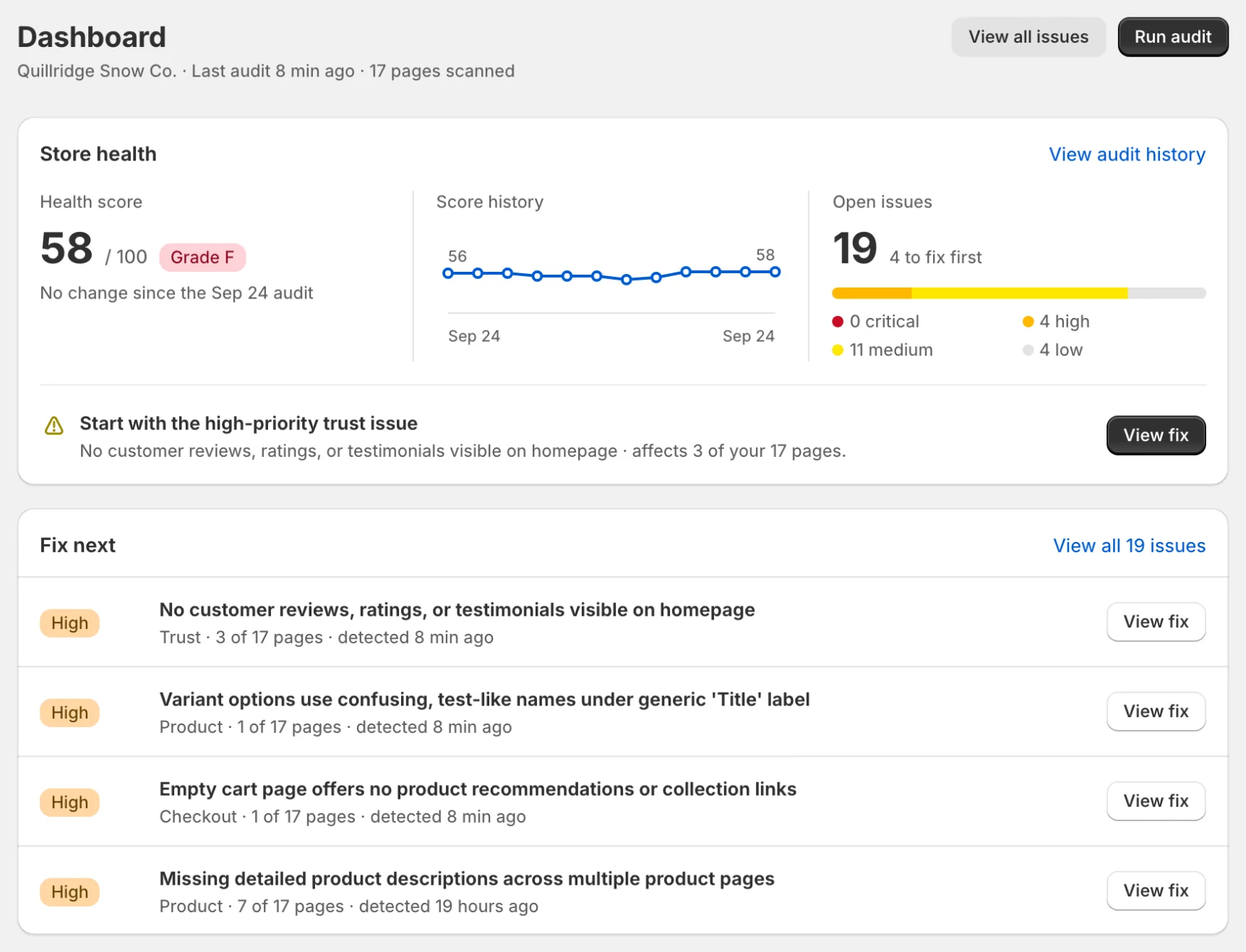
After the audit, the Zolvio dashboard shows:
- Store health - your health score from the latest audit, how it changed since the previous one, open issues split by severity, and how many fixes are waiting for confirmation by the next audit
- Fix next - the issues to work on first, each with a View fix button
- Tool cards - Recordings, Heatmaps, A/B tests and Surveys with an honest state (Recording, Collecting, Active, or Set up needed)
- Issues by category - where the open issues sit: Trust, Speed, Product, Navigation and so on
Next Steps
- Work the top issue - Click View fix and follow the guided fix
- Watch a few sessions - See how shoppers move through your store in Recordings
- Check a heatmap - See which elements shoppers click on key pages in Heatmaps
- Run an A/B test - Use A/B testing setup to start safely
Data Collection
Zolvio starts collecting data once the app embeds are on in your live theme:
- Recordings start for new visitors, following your store’s cookie consent and your plan’s sampling (the Free plan records 1 in 10 visitors, Starter 1 in 2)
- Click and scroll data for heatmaps comes from the same recordings
- Everything shoppers type is hidden, and checkout, account, order and login pages are never recorded
Privacy and consent
You are responsible for configuring consent and updating your storefront policies to disclose recording/analytics. See Privacy & Compliance for a checklist.
Tip
It may take 24–48 hours to accumulate enough traffic for meaningful insights. Heatmaps show as “Collecting” until a page reaches 30 sessions and 50 clicks, then “Ready”.