Guided Fixes
Step-by-step instructions to fix issues in your Shopify theme: the file to open, the exact line to find and the code to paste. Zolvio never edits your theme — you make the change yourself.
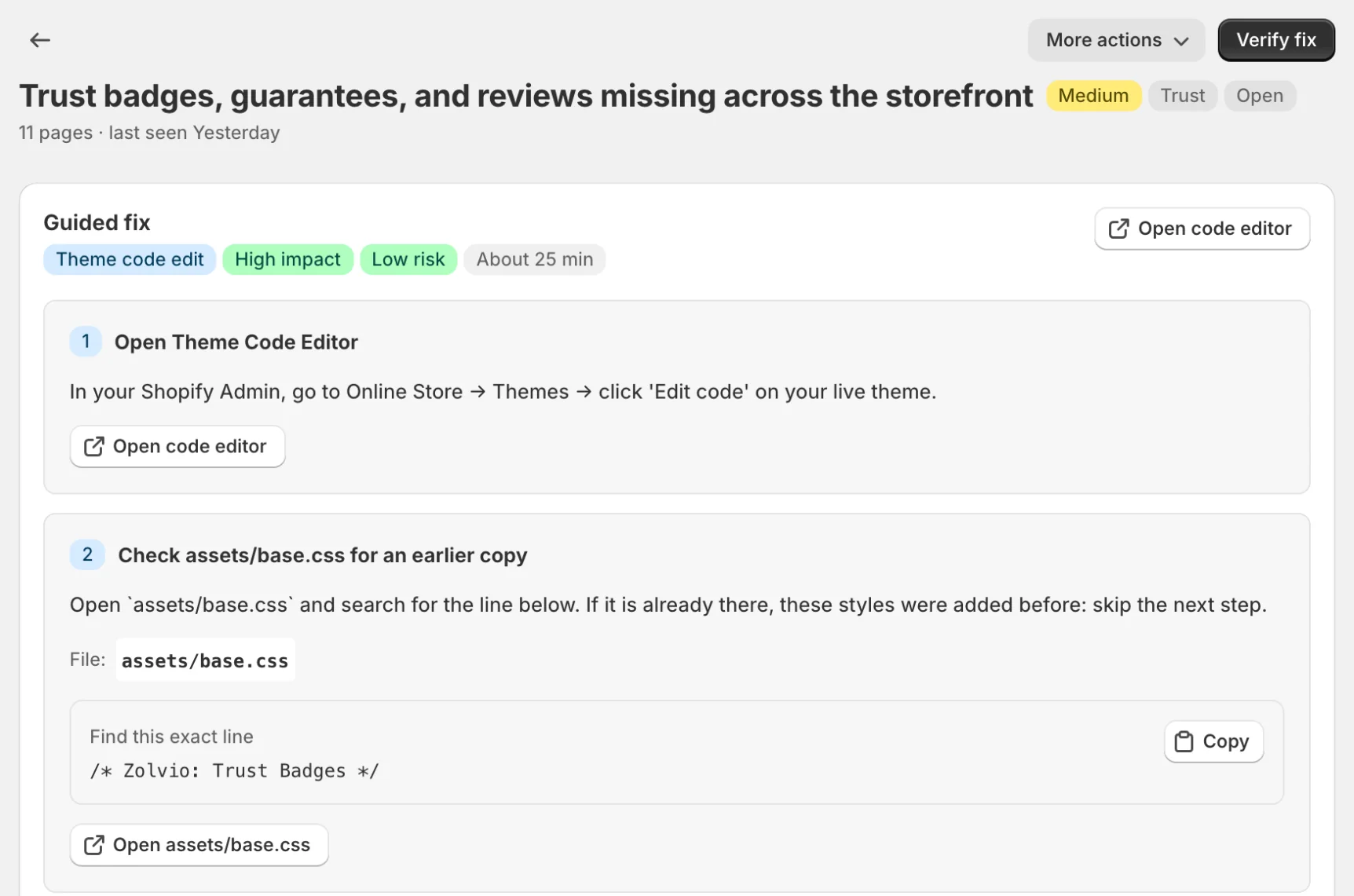
What “Guided Fixes” Mean
When Zolvio detects an issue, you get:
- A clear explanation of what’s wrong and why it impacts conversion
- Evidence (affected pages, screenshots/metrics when available)
- Numbered steps that say exactly where to make the change: the file to open, the exact line to find and the code to add (or where to click in the theme editor or Shopify settings)
- A link to the right file: Open <file> opens it in Shopify’s code editor
Start from Issues
Guided fixes are attached to issues. See Issues & Fixes for the workflow.
Recommended Workflow
- Run an audit to generate a prioritized Issues list
- Click View fix on a high-impact issue (Critical/High first). If the Guided fix card is empty, click Generate fix at the top of the page. Guided fixes written for your theme come with paid plans: on the Free plan the issue page offers Mark as fixed instead
- Follow the steps. Open <file> takes you to the exact file in your live theme’s code editor; duplicate your theme first if you want a restore point
- Click Verify fix: Zolvio checks your published theme’s files for the change and marks the issue fixed
- Made it another way? Mark as fixed anyway; the next audit confirms it
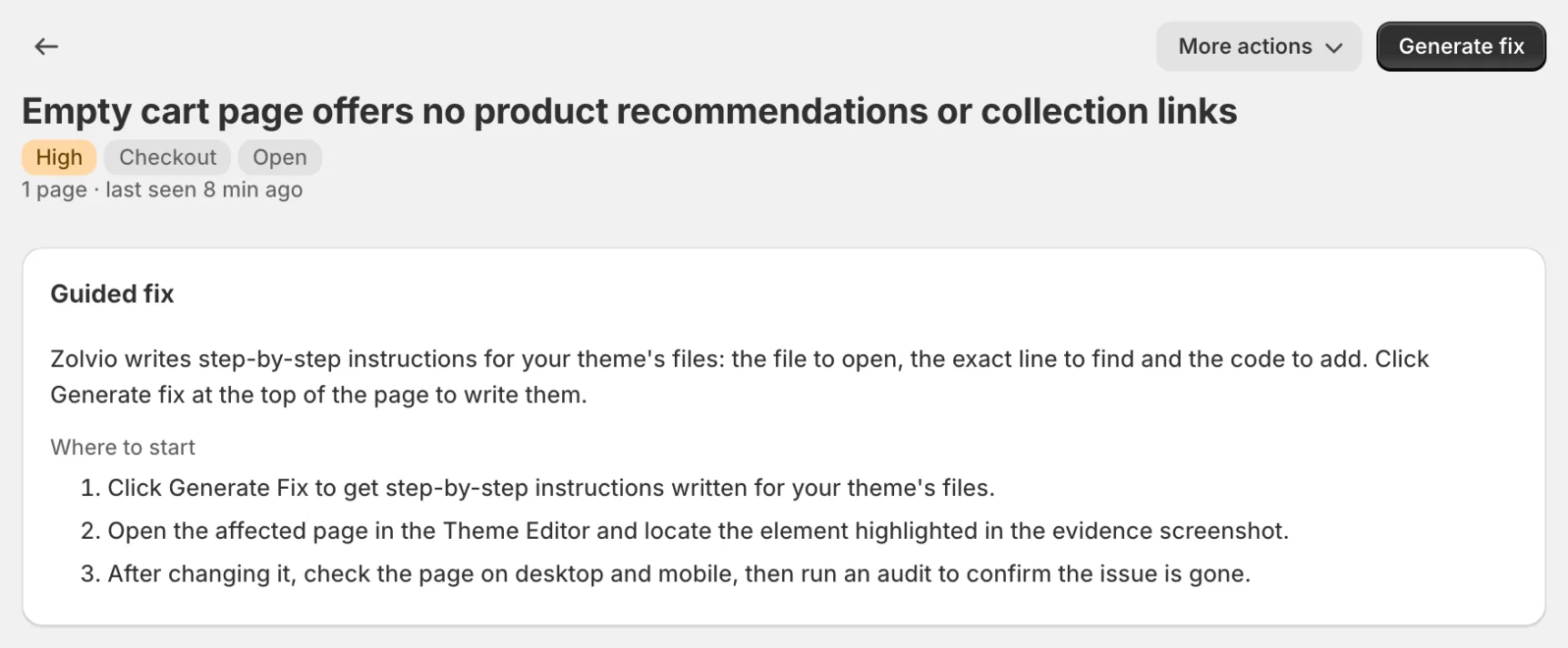
What You’ll See in a Guided Fix
- Where to change: the theme file, or e.g. “Theme Editor → Sections → Product template → Add block…”
- What to add/remove: the exact line to find and the code, text, blocks or settings to change
- How to verify: what should look different after you save
- Common pitfalls: theme differences, app conflicts, mobile vs desktop layout
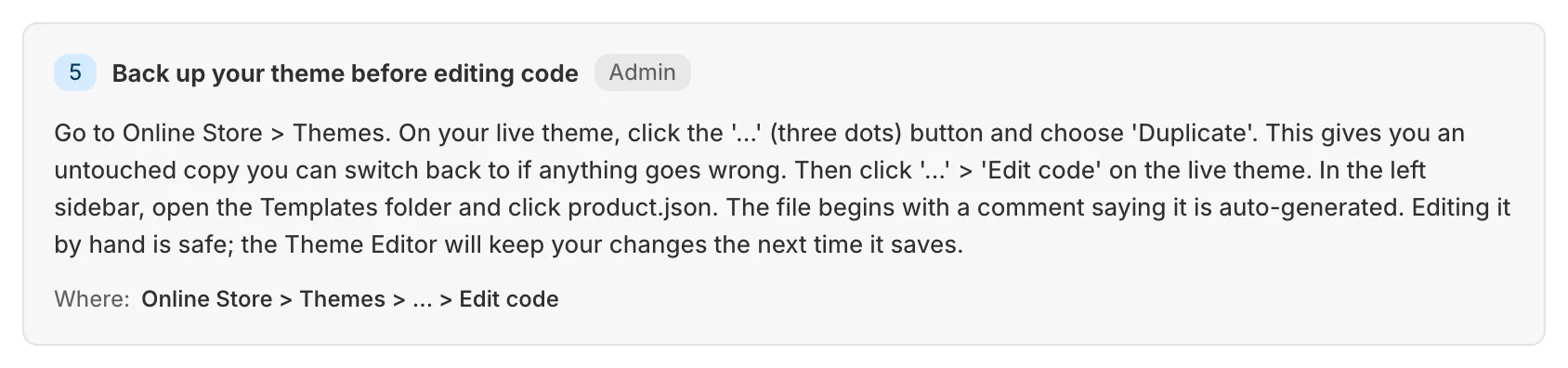
Keep a Restore Point
Before you change your theme:
- Duplicate your theme in Shopify (Online Store → Themes → … → Duplicate)
- Make the change, then check key flows (homepage → product → add to cart → cart)
- If something breaks, go back to an older version of the file in the code editor, or publish the copy
See Before You Edit Your Theme.
When to Ask a Developer
Consider hiring a developer for:
- Complex structural changes
- Custom functionality additions
- If you're not comfortable editing code
- Highly customized themes with non-standard code
Common Fix Categories
Guided fixes commonly cover:
- Showing contact details, returns and shipping information
- Improving button visibility and contrast
- Optimizing mobile layouts
- Speeding up image loading
- Enhancing product page layouts
- Removing friction on the cart page and the way to checkout
Plans
Guided fixes are written by AI, so they need a paid plan with AI in audits and fixes turned on under Settings → AI processing. See AI Usage & Controls.