Issues & Fixes
Turn audit findings into a prioritized action list with evidence and guided fix steps.
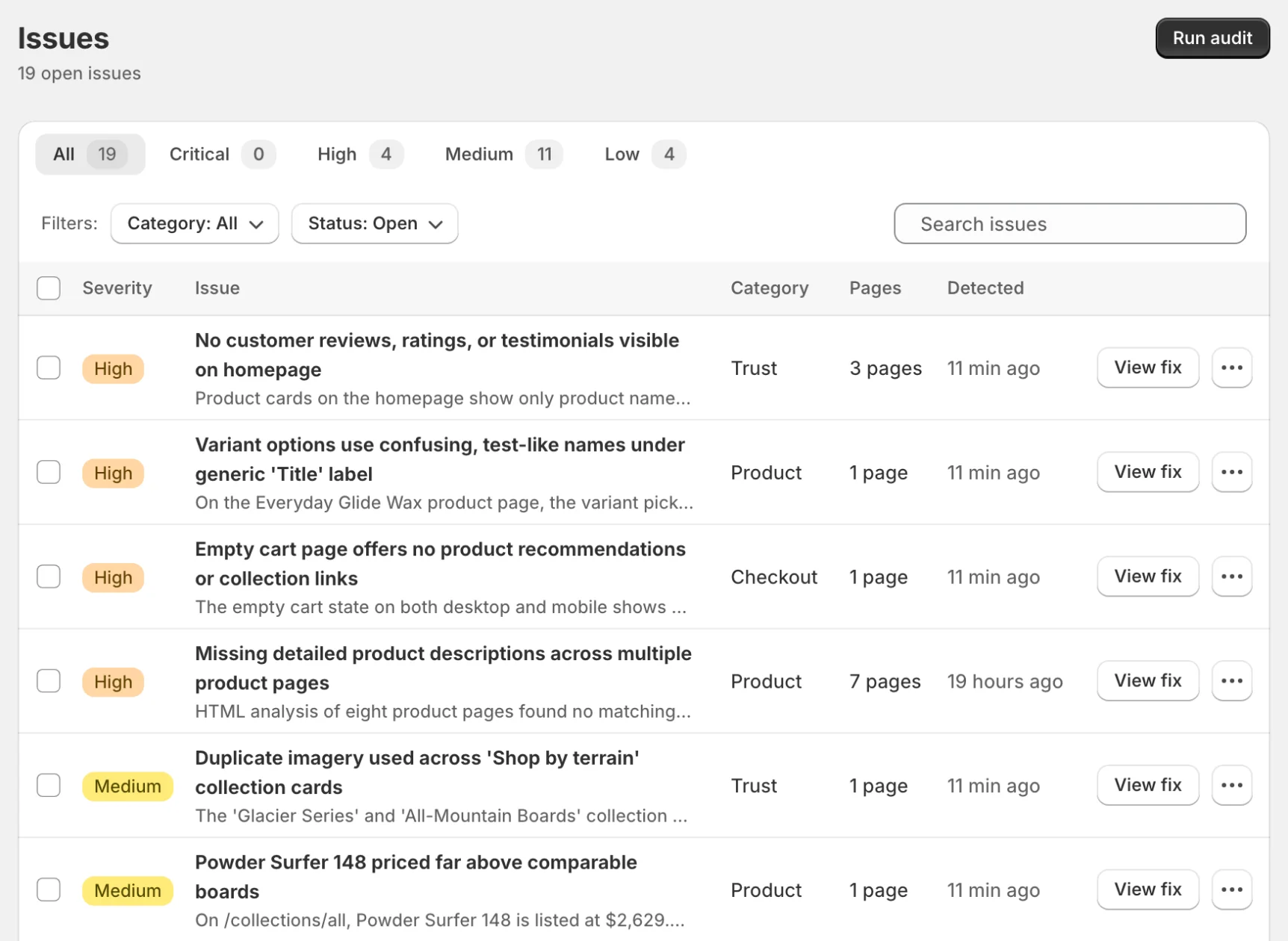
Issue Workflow
- Run an audit to generate issues
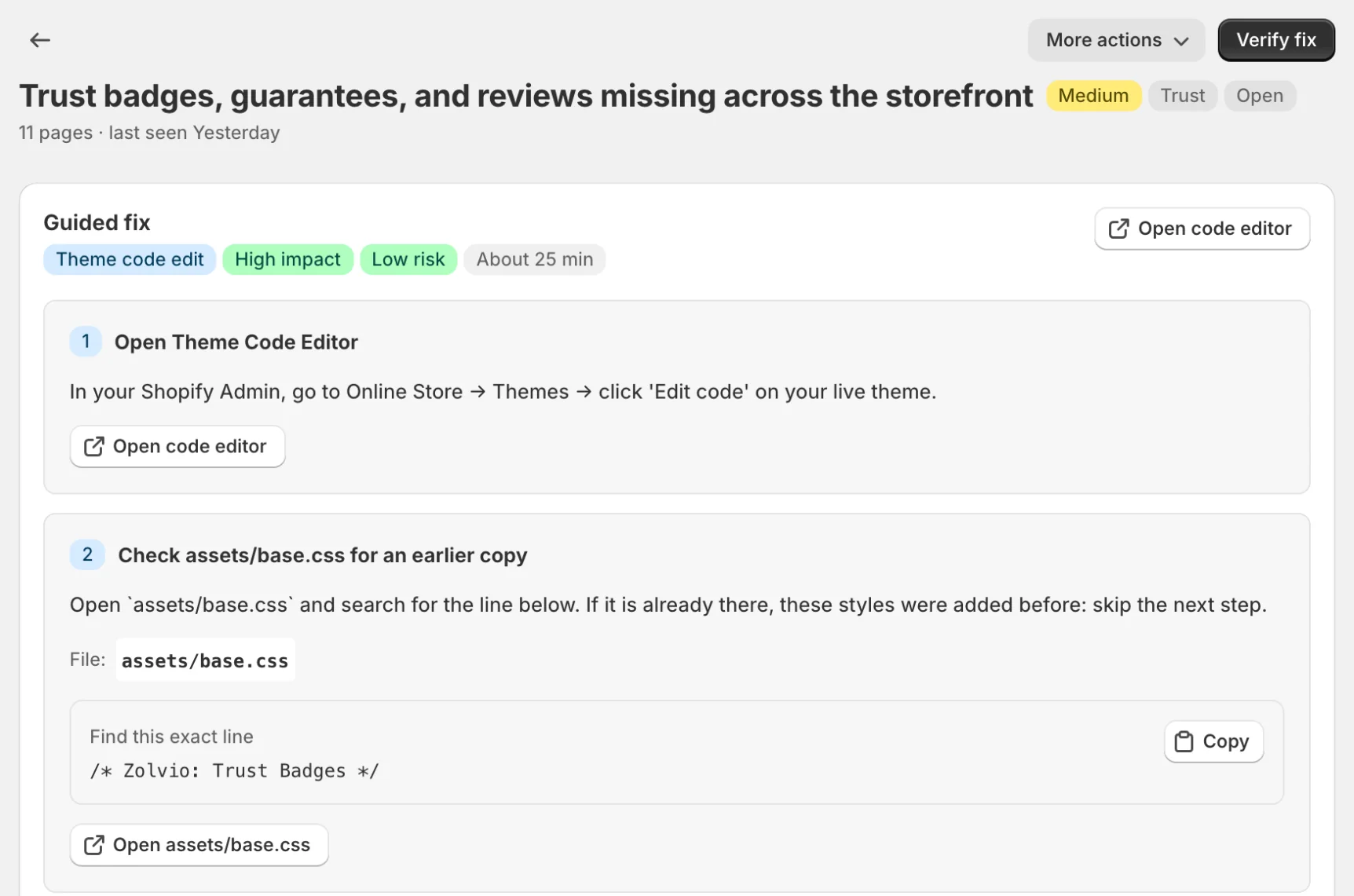
- Click View fix on an issue. The Guided fix card sits at the top of the issue page; if no fix has been written yet, click Generate fix at the top of the page (on the Free plan, which doesn’t write guided fixes, the page offers Mark as fixed instead)
- Read What’s the problem? (with the evidence screenshot) and Why it matters. Use View heatmap and View recordings to see shoppers run into it
- Follow the steps. Open <file> takes you to the exact file in your live theme’s code editor; duplicate your theme first if you want a restore point. Not sure the change will help? Click Test this change to start an A/B test of your fix on that page
- Click Verify fix: Zolvio checks your published theme’s files for the change and marks the issue fixed. Made it another way? Mark as fixed anyway; the next audit confirms it
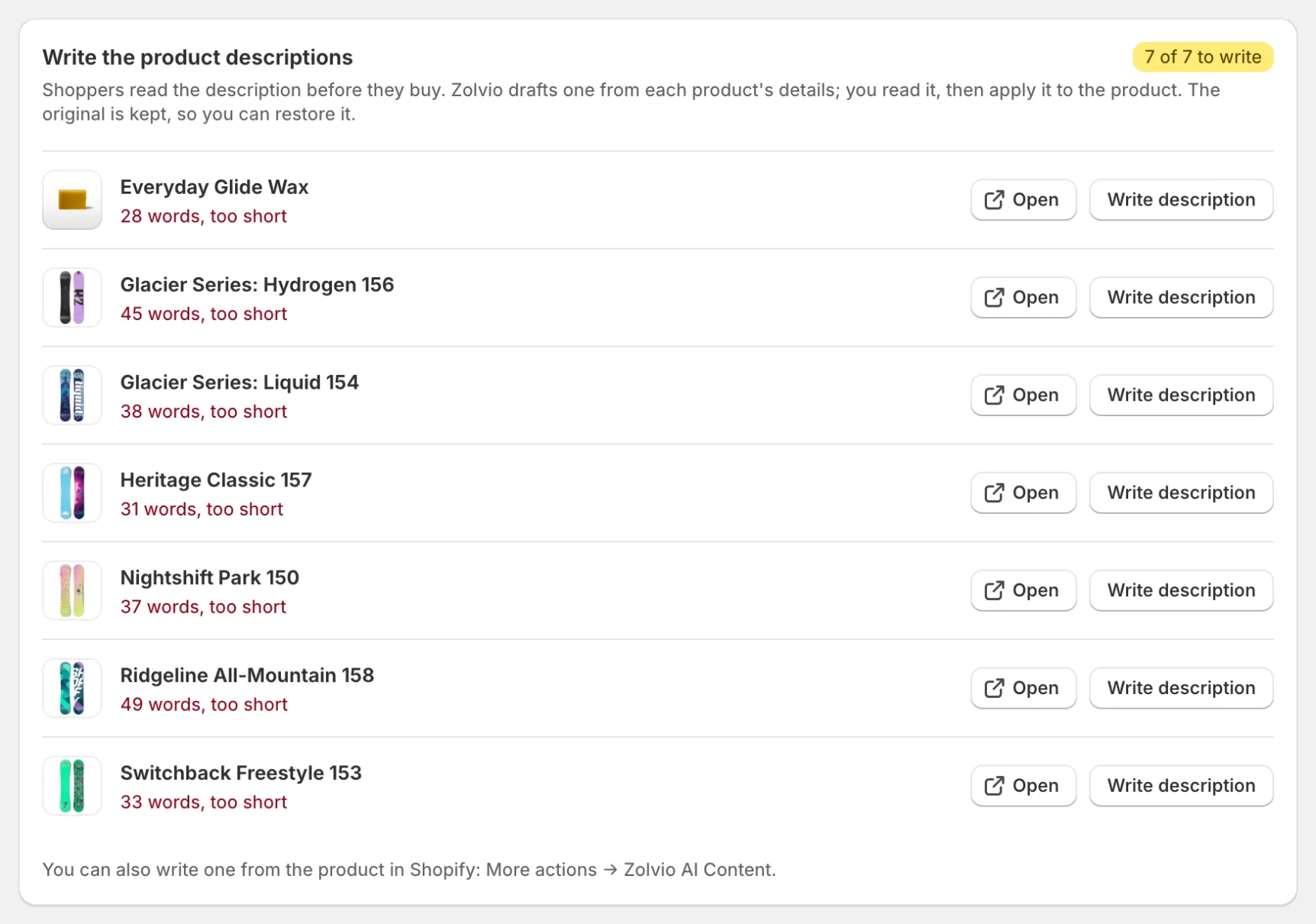
Missing Product Descriptions
When an audit flags products with missing or thin descriptions, the issue page has a Write the product descriptions card listing each product. Click Write description (or Rewrite), review the draft, and click Apply to product. The original is kept, so you can Restore original later. Writing descriptions uses AI, so it needs a paid plan with AI in audits and fixes turned on.
Start from audits
If you haven’t run an audit yet, start at Audits.
What You Can Do With Issues
- Work through the severity tabs (Critical, High, Medium, Low), filter by category or status, and search
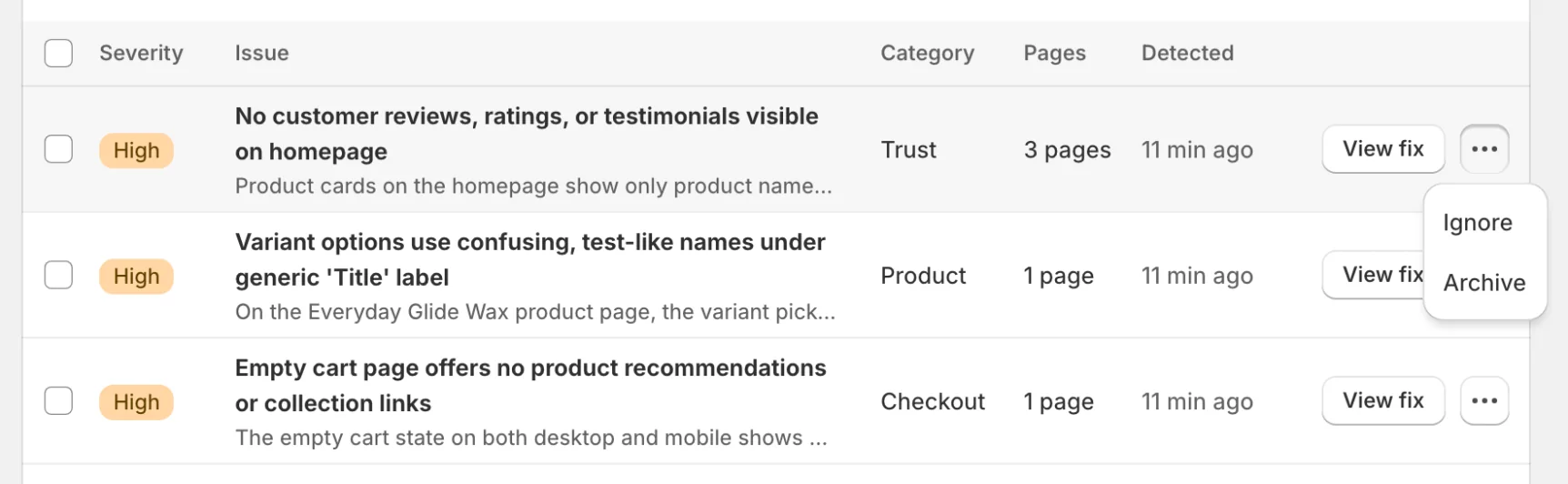
- Open the fix from any row with View fix; Ignore and Archive live in the row’s ⋯ menu, and you can select several issues to archive or ignore at once
- Review the detection history for recurring issues
- Use heatmaps and recordings to validate impact before changing your theme
What a Guided Fix Can Include
- Theme Editor changes: add/remove blocks, adjust settings, reorder sections
- Shopify settings: policies, payment badges, shipping/returns, notifications
- Code steps: the file to open, the exact line to find, and the code to add
- Verification: Verify fix checks your published theme’s files for the change