Audits
Scan your store in one click: 50 built-in checks, plus AI screenshot review on paid plans, turned into a prioritized list of fixes.
Before your first audit
What Zolvio Does During an Audit
- Crawls key store pages (up to your plan’s per-audit page limit)
- Runs 50 built-in checks across trust, speed, mobile, navigation, product pages and the cart
- On paid plans with AI in audits and fixes turned on, Zolvio’s AI agent reviews desktop and mobile screenshots of key pages for problems shoppers can see
- Goes back to pages with open screenshot findings, oldest-checked first, within your plan’s screenshot pages, so those findings are judged again
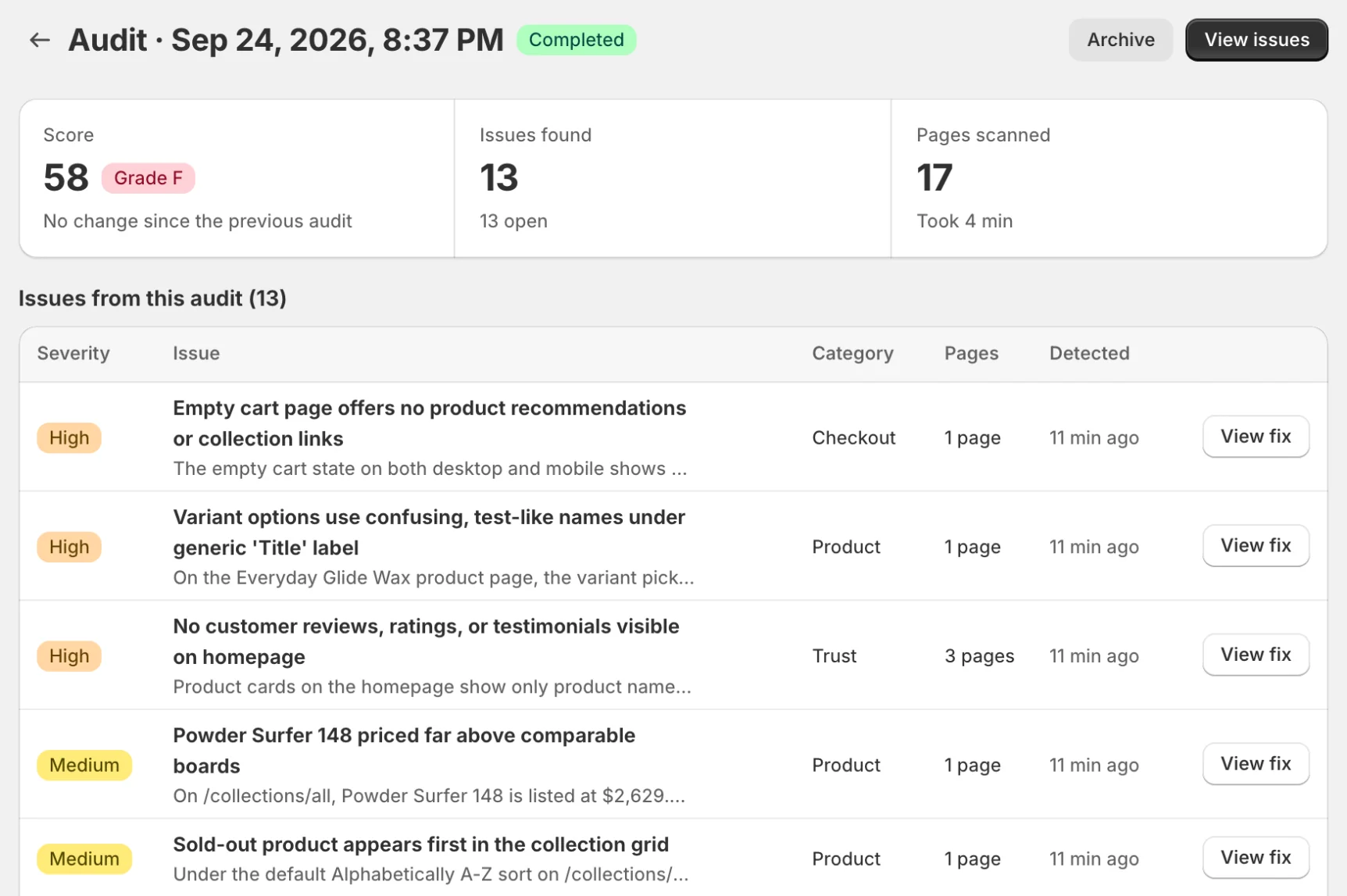
- Assigns each issue a severity and scores the audit from 0 to 100 with a letter grade
- Creates an Issues list you can filter, triage, fix, ignore, or archive
Want to fix issues?
What Audits Check
The built-in checks fall into six categories:
- Trust (7 checks) - reviews, contact details, delivery and returns information on product pages, broken images, placeholder content, return promises your refund policy doesn’t make and sale countdowns that aren’t real deadlines
- Speed (9 checks) - load time, image sizes, render-blocking and large scripts, lazy loading, third-party requests, more video than phones show, the first screen’s main image on phones and leftover code asking for missing files
- Mobile (8 checks) - tap targets, sideways scrolling, text size, image sizes, the mobile menu, form fields, how far down the buy button sits and pinch-to-zoom
- Navigation (9 checks) - search, broken links, links to empty collections, your www or bare domain, the footer, collection filters, sold-out products at the top of collections, the logo link and buttons screen readers can’t name
- Product page (12 checks) - images, price, description, variant choice, the add to cart button, structured data for search engines, error messages next to the buy button, size guides, beauty products’ ingredient lists, the maximum user weight of machines, chairs, e-bikes, boards and hammocks, product data sent to Google that the page contradicts, and the choking-hazard warning on latex balloon listings
- Cart & checkout (5 checks) - the cart’s checkout button, subtotal, shipping information, payment icons and sale savings
Every issue an audit can raise, with exactly how it’s detected and how to fix it, is in the Shopify conversion issue library.
Running an Audit
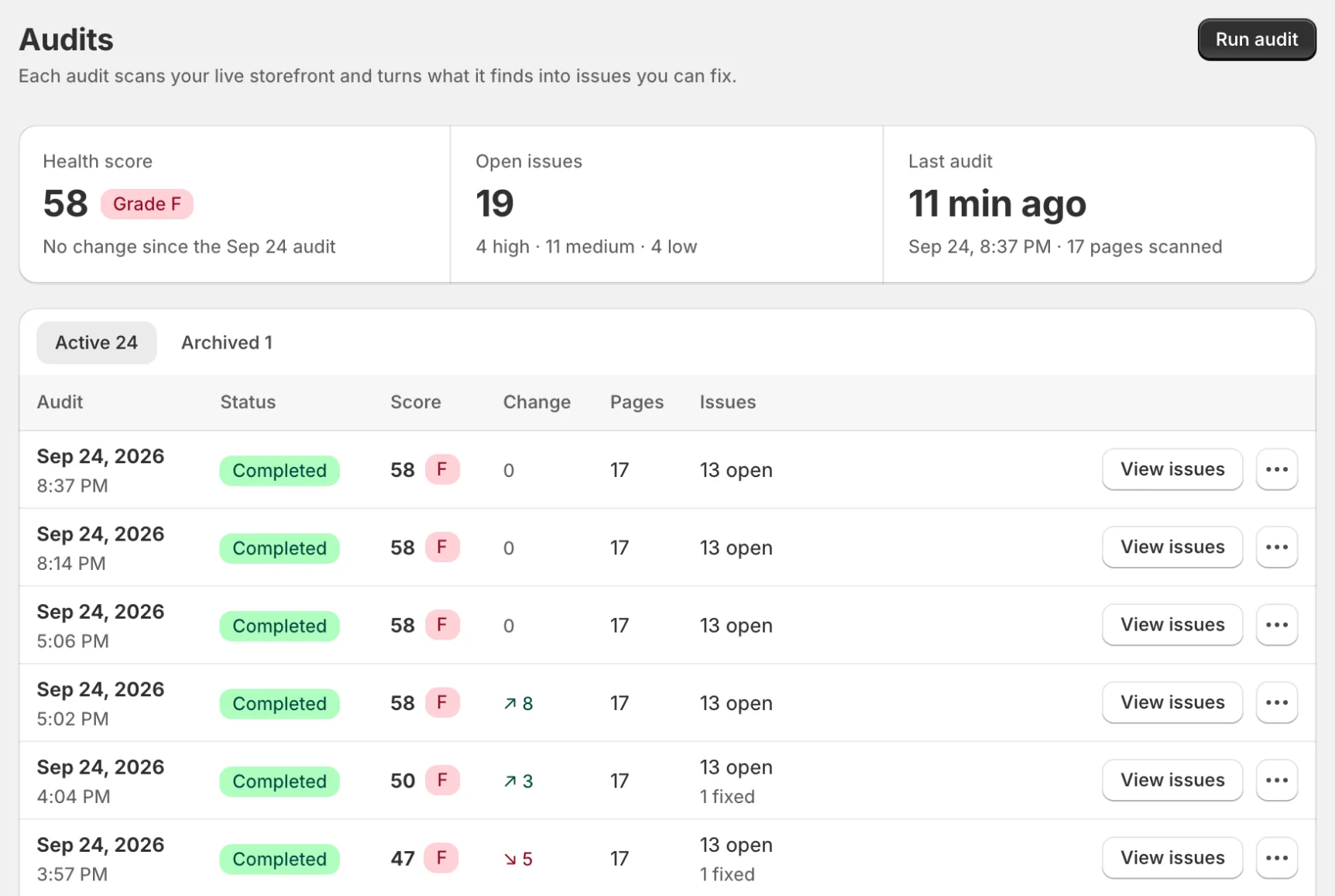
- Go to Audits in the sidebar
- Click Run audit
- Wait while Zolvio scans your pages (typically 2–5 minutes). While other audits are ahead of yours, the status reads “Queued: 2 audits ahead, starts in about 4 min”; once it runs, it shows about how long is left
- Review the detected issues
For a deeper explanation of what happens behind the scenes, see How Audits Work.
Issue Severity
Issues are categorized by severity:
- Critical - Major conversion blockers that need immediate attention
- High - Significant issues that likely impact conversions
- Medium - Moderate issues worth addressing
- Low - Minor improvements for optimization
How Often to Run Audits
We recommend running audits:
- After making significant theme changes
- When launching new products or collections
- At least once per month for ongoing optimization
Audit Limits
- Free: 1 basic audit (up to 25 pages) with no AI, which reports the 22 measured checks listed below. If it fails, you can run it again
- Starter: 2 audits/month (up to 25 pages each)
- Growth: 8 audits/month (up to 50 pages each)
- Pro: 30 audits/month (up to 75 pages each)
A failed audit doesn’t count against your plan. Audits are quota-protected (audit runs, pages per audit, and AI actions). See Limits & Quotas.
What an audit reports without AI
On the Free plan, or with AI turned off, an audit reports only the 22 problems Zolvio measures directly. The other checks need AI review before they’re reported, so they appear on paid plans with AI turned on.
- Broken images
- Placeholder text or images left on the store
- Return promise that doesn’t match the refund policy
- Sale countdown that isn’t a real deadline
- Slow page load
- Images much larger than they’re shown
- Scripts that block the page from rendering
- JavaScript files too large for phones
- Too many requests to third-party services
- Phones download more video than they show
- Main image on the first screen loads late on phones
- Leftover or broken code asks for missing files
- Page scrolls sideways on mobile
- Text too small to read on mobile
- Images too large for phones
- Pinch-to-zoom turned off on phones
- Broken links
- Links to empty collections
- Your domain without www (or with it) shows an error page
- Sold-out products at the top of a collection
- Product page without a product image
- Google gets a price or rating the page contradicts
Health score
Each audit is scored from 0 to 100, with a letter grade from A (excellent) to F (needs significant work), based on:
- Number and severity of detected issues
- Issue categories affected
- Percentage of pages with problems
Your health score is always the latest completed audit’s score. The dashboard and the Audits page show it once, with the change since the previous audit, and the Audits table has a Change column per audit. Fixing or ignoring issues lowers your open issue count right away; the score itself moves when you run the next audit.
Tip
Troubleshooting
If an audit fails or gets stuck, see Troubleshooting.