Session Recordings
Replay real storefront sessions to see what visitors do, where they struggle, and what blocks conversion.
What You’ll Use This For
- Debug UX issues (broken buttons, confusing navigation, slow pages)
- Validate hypotheses before you run an A/B test
- Spot friction patterns (rage clicks, repeated back-and-forth navigation)
Quick Start
- Turn on the Zolvio Recording app embed in your theme editor. See Setup.
- Make sure your store’s cookie banner is set up: recordings follow it. See Privacy & Consent.
- Wait for traffic, then open Recordings in the app and click Watch on a session.
What Gets Recorded
Session recordings capture interaction and page context, including:
- Mouse movements and clicks
- Scroll behavior
- Page navigation
- Form interactions (what shoppers type is hidden)
- Device and browser information
Privacy first
Watching Replays
To watch a session recording:
- Go to Recordings in the sidebar
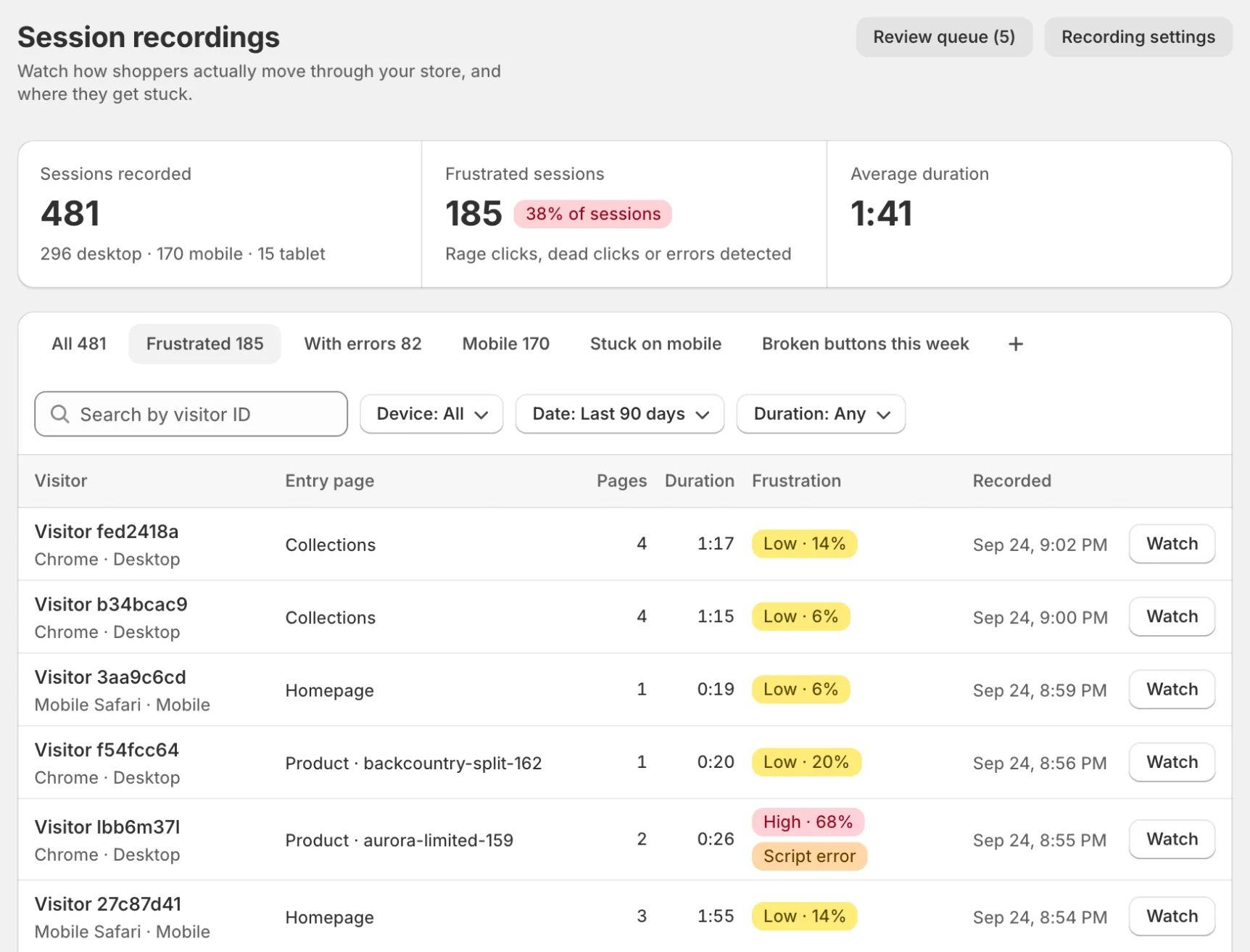
- Browse the list of recorded sessions
- Click Watch on any session to open the player
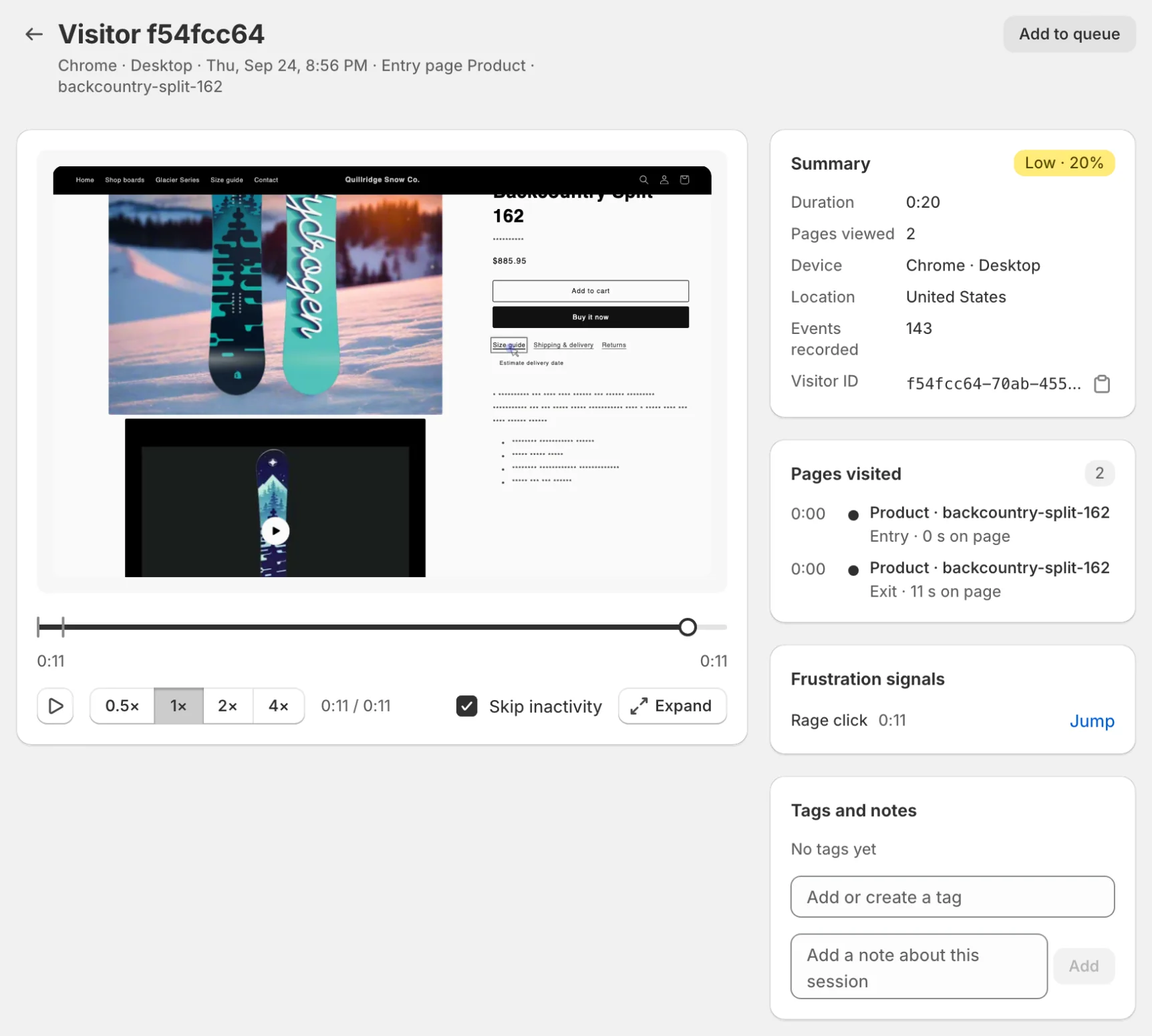
- Use the controls under the player: play/pause, 0.5× to 4× speed, Skip inactivity, and Expand
For a practical walkthrough (filters, timeline markers, tags/notes, review queue), see Reviewing sessions.
Filtering Sessions
The list has tabs for All, Frustrated, With errors and Mobile, plus your saved views. Filter further by:
- Device - desktop, mobile or tablet
- Date - the last 7, 30 or 90 days (the default), or all time
- Duration - under 30 s, 30 s to 5 min, or over 5 min, and an option to hide bounces under 2 seconds
- Country - the countries your recorded visitors came from
- Source - search, social, direct, email, other sites or unknown
- UTM source - the campaign source in the visitor’s link
- Visitors - new or returning visitors
- Problems - script errors, failed requests or rage clicks
- Cart - shoppers who added to cart or reached checkout, and a Cart value of at least an amount you choose
- Visitor ID - search for a specific visitor
Sort puts the newest, the longest or the most frustrated sessions first. Sessions where a shopper added to cart or went to checkout carry a badge with how far they got and the cart’s value.
Pages that opened and closed in under 5 seconds with nobody clicking, scrolling, touching or typing are hidden and don’t count toward your plan’s recordings. Tick Include sessions with no activity under Duration to show them.
Sampling, Limits, and Retention
Recording volume is controlled by plan limits (monthly quotas), sampling, and retention. See Sampling & Retention.
Frustration Detection
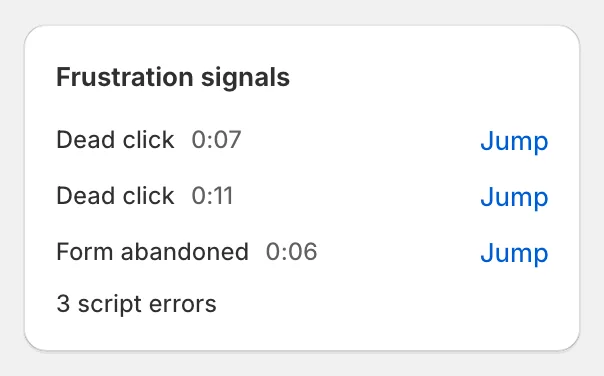
Zolvio analyzes session events to identify frustration patterns and summarizes them in one label: None, Low, Moderate or High, with the score next to it. Sessions with failed requests or JavaScript errors also get a Network error or Script error chip.
- Frustration score (0–100) behind the label
- Rage clicks (rapid repeated clicking in the same area)
- Dead clicks (clicks on non-interactive elements)
- Mouse thrashing (rapid back-and-forth cursor movement)
- Error clicks (clicks followed by JavaScript errors)
- Form abandonment (partial input then leave)
Troubleshooting
If you don't see sessions, first check Settings → App embeds and your consent setup. See Troubleshooting.