Session Recordings Setup
Turn on the Zolvio Recording app embed, check that sessions arrive, and confirm your consent flow.
Prerequisites
- You have installed the Zolvio app on your Shopify store
- You can edit your store theme in Shopify
- You have (or plan to add) a consent banner appropriate for your region
Turn On the App Embed
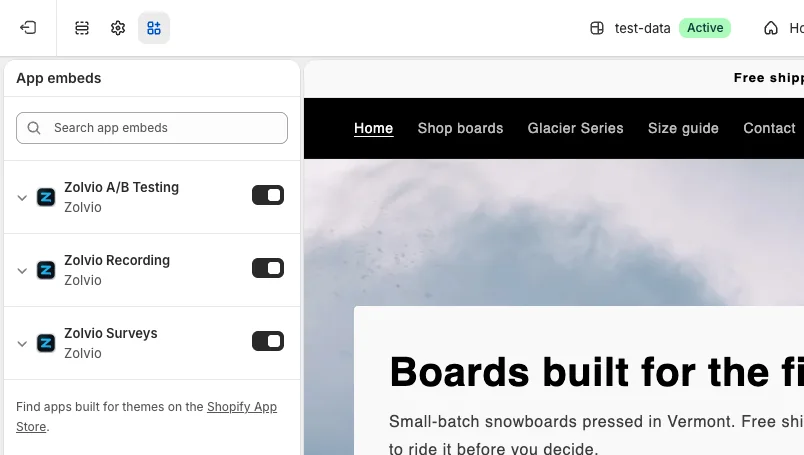
- In Zolvio, open Settings → App embeds and click Open theme editor (or, in Shopify admin, go to Online Store → Themes and click Customize)
- Open App embeds in the theme editor’s left sidebar
- Turn on Zolvio Recording
- Click Save
Consent
Recording follows your store’s cookie consent through Shopify’s Customer Privacy API: when a shopper hasn’t allowed analytics, nothing is recorded, and if they withdraw consent, recording stops and anything not yet sent is deleted from their browser. Checkout, account, order and login pages are never recorded.
Verify It’s Working
- Open your storefront in an incognito window (to simulate a new visitor)
- Navigate a few pages and click around
- Open Zolvio → Recordings and look for a new session
Common Setup Issues
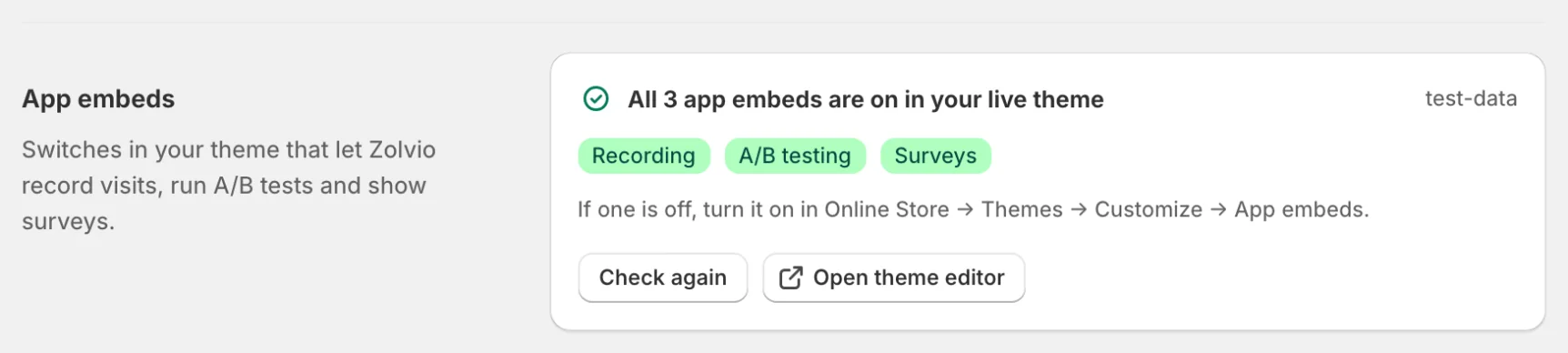
- No sessions appear: check Settings → App embeds (an embed that is off shows as “Recording off”, and Open theme editor takes you there), your consent configuration, and that the theme is saved. See Troubleshooting.
- Only some visitors record: the Free plan records 1 in 10 visitors and Starter 1 in 2. See Sampling & Retention.