Reviewing Sessions
A fast way to get value from recordings is: filter → watch → tag → act. This page covers how to triage sessions, interpret timeline markers, and turn sessions into an action list.
Start with the right tab and filters
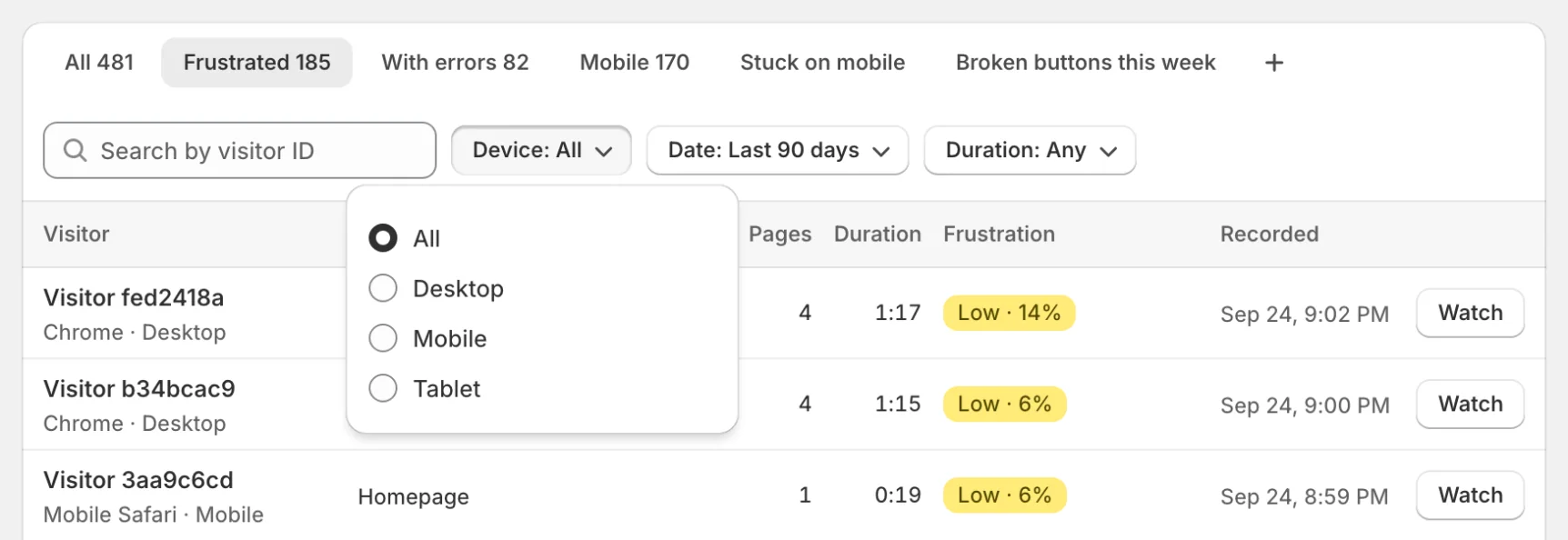
- Frustrated tab: sessions with rage clicks, dead clicks, or a high frustration score.
- With errors tab: sessions where the page threw JavaScript errors.
- Problems and Cart filters: sessions with script errors, failed requests or rage clicks, and shoppers who added to cart or reached checkout, above a cart value you choose. Sort by Most frustrated first to start with the worst.
- Duration filter: short sessions often indicate confusion; long sessions can indicate decision fatigue. Tick Hide bounces under 2 s to drop visitors who left immediately.
- Saved views: once you have a filter combination you reuse, click + next to the tabs to save it as a view.
Privacy note
Recording respects consent and blocks sensitive paths (such as checkout/account). If recording is disabled or consent is denied, you’ll see fewer sessions and some pages won’t be recorded.
Use the timeline to jump to moments that matter
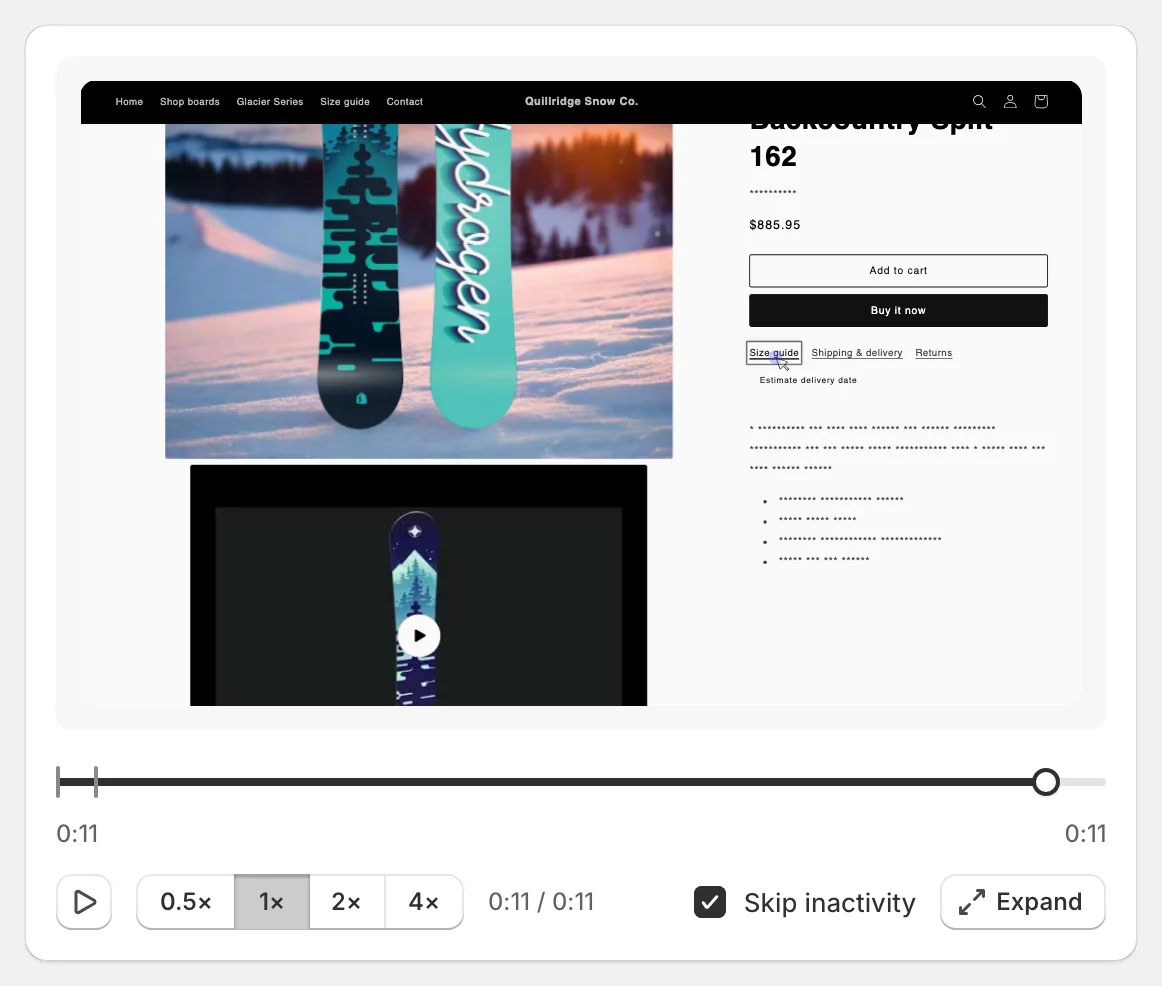
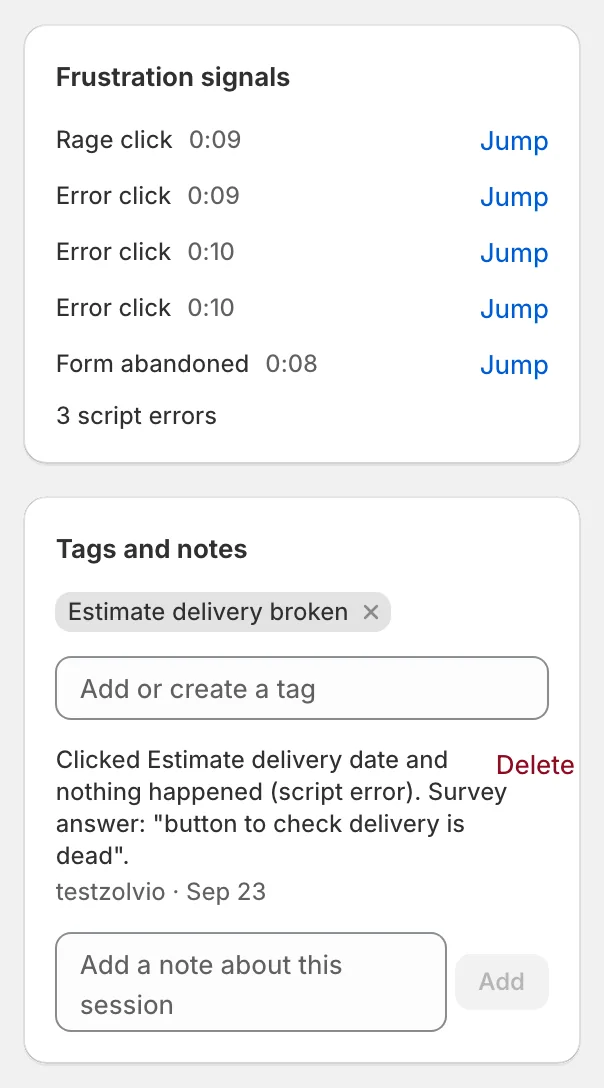
The strip under the player marks every page load, every frustration signal and every cart moment (added to cart, opened the cart drawer, the cart’s value, went to checkout); the playhead shows where you are. The Pages visited list next to the player jumps to the moment a page was opened, and Frustration signals jumps to each rage click, dead click or error. When you’re trying to answer “what went wrong?”, this is much faster than watching from the start.
Operationalize: tags, notes, and review queue
- Tags: label sessions like “checkout friction”, “pricing confusion”, “mobile layout”.
- Notes: add the hypothesis (“CTA not visible on mobile”) and the next action.
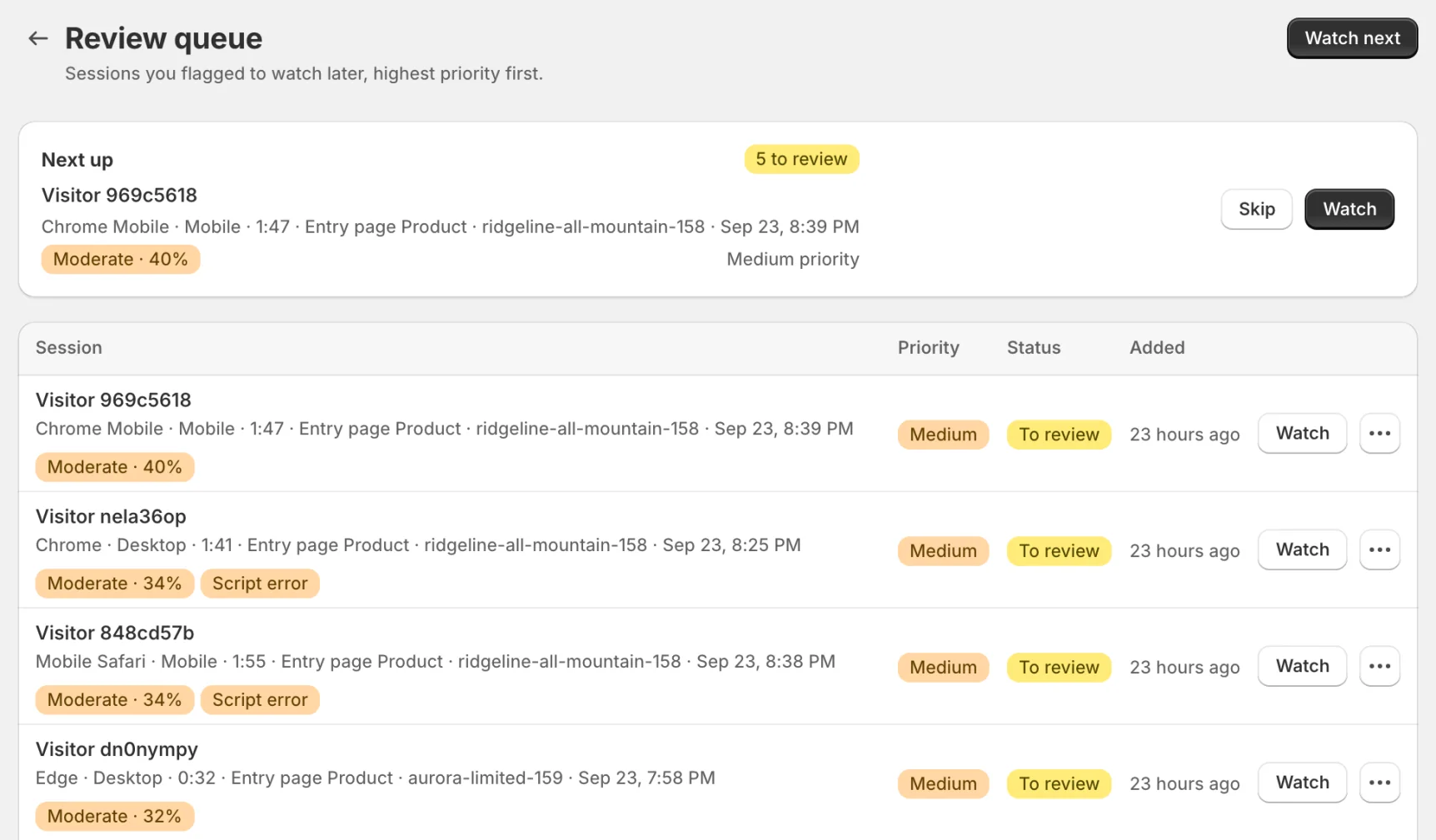
- Review queue: click Add to queue in the player header to keep a short list of sessions to revisit after you ship a change; the queue page shows the next one to watch, highest priority first.