Dashboard
The dashboard is your “10-second answer”: what’s broken, is data flowing, and what should you do next.
Store health
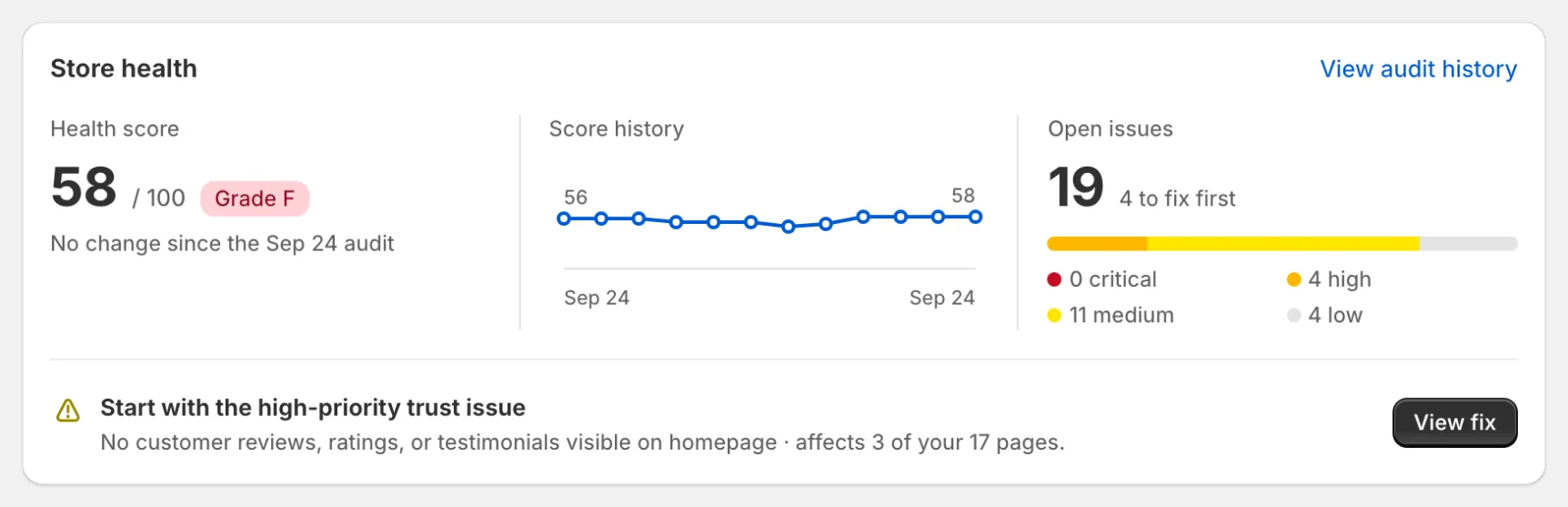
The score is said once. It comes from your latest completed audit, with the change since the previous audit (“Down 3 since the Jul 25 audit”), a small score history, and your open issues split into critical, high, medium and low. Under the numbers, one line names the issue to fix first with a View fix button.
After you fix issues, a line under the score counts the fixes waiting for confirmation (“2 fixes waiting for confirmation · score 72 after the next audit”). The score itself only moves when an audit runs: the next audit confirms those fixes and updates it. Click Run audit on that line to start one.
Fix next
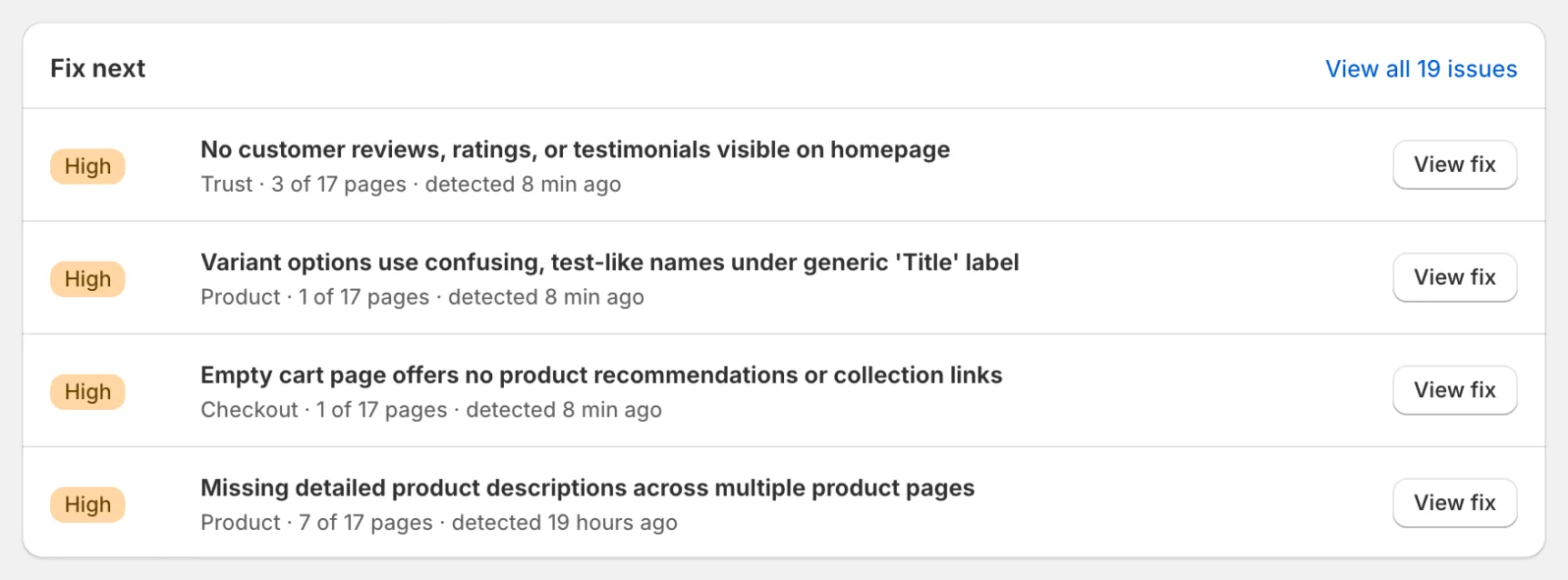
The issues to work on first, ordered by severity, each with the category, how many of your scanned pages it affects, when it was detected, and a View fix button that opens the guided fix.
Tool cards
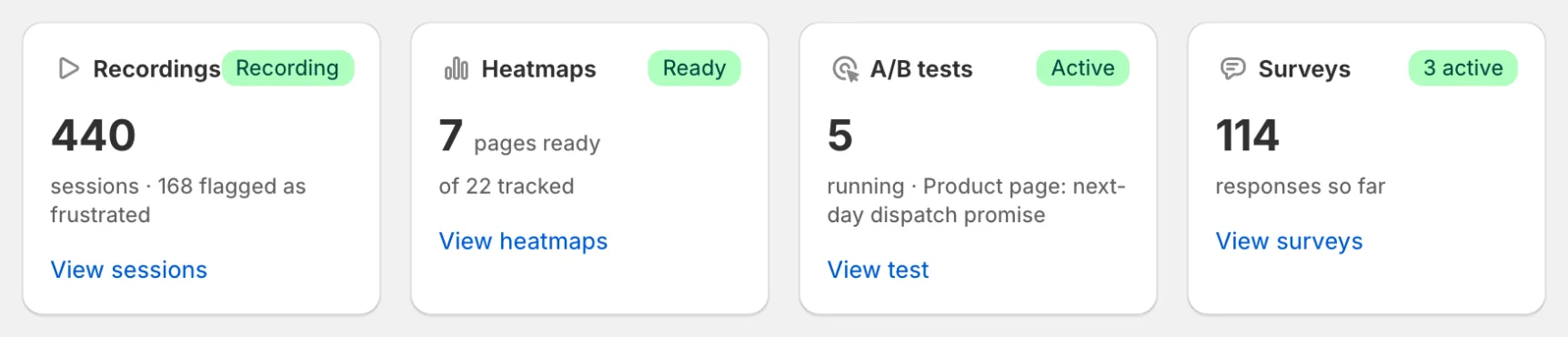
Recordings, Heatmaps, A/B tests and Surveys each show one number and an honest state: Recording, Collecting (with progress such as “4 of 30 sessions”), Active, or Set up needed when the theme app embed is off.
- If recording isn’t enabled, follow Recording setup.
- If A/B testing isn’t enabled, follow A/B setup.
- If surveys aren’t enabled, follow Survey setup.
Workflows
Time range
The Recordings card counts sessions from the last 30 days; the score, open issues and heatmap progress are current. When in doubt, open the module (Recordings, Heatmaps, A/B tests) and use its own filters.
Common dashboard messages
- AI visual analysis is off: AI in audits and fixes is off under Settings → AI processing, so audits only run built-in checks. Click Turn it on.
- AI Features Disabled: AI is paused for your store under Settings → Emergency controls. Click Resume there to turn it back on. See AI Usage & Controls.
- Quota reached: plan limits prevent more audits/surveys/tests until reset or upgrade. See Billing & Plans.
- Collecting: the tool is on but doesn’t have enough data yet; send traffic to the storefront and check again later.