A/B Testing
Run controlled experiments on your storefront without code. Build a variant by pointing and clicking on your live store, split traffic evenly, and let Zolvio tell you—in plain language—which version wins, then show the winner to every visitor without editing your theme.
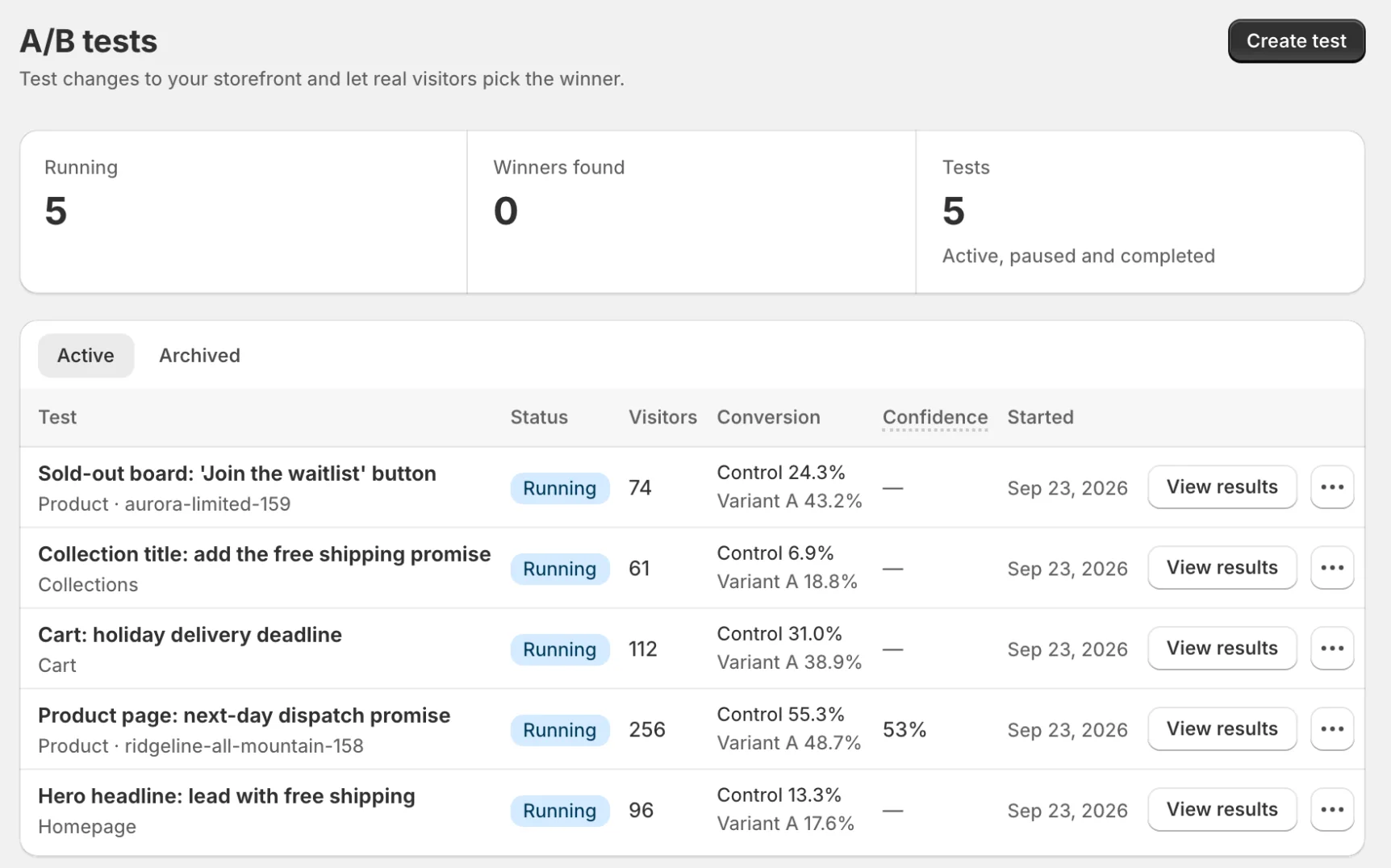
What you can test
- Visual change — edit elements on a page (text, colors, styles, images, show/hide). You can bundle several edits into one variant. This is the most common test type and uses the visual editor.
- Split URL — send a share of visitors to a different page or template (for example, two landing pages) and compare them.
How it works
- Zolvio assigns each visitor to a variant and keeps that assignment consistent (“sticky”). Assignment runs for every visitor so each one sees a consistent version; it uses a random ID and a 30-day cookie and never records the session.
- An anti-flicker layer helps prevent a flash of the original content before the variant applies.
- Conversions are attributed using exposure windows (add to cart, reach checkout, purchase, or a click you choose).
- A single decision engine turns the raw numbers into a clear verdict—including how likely each variant is to be the best—so you don’t have to interpret p-values yourself.
Before you start
Creating a test
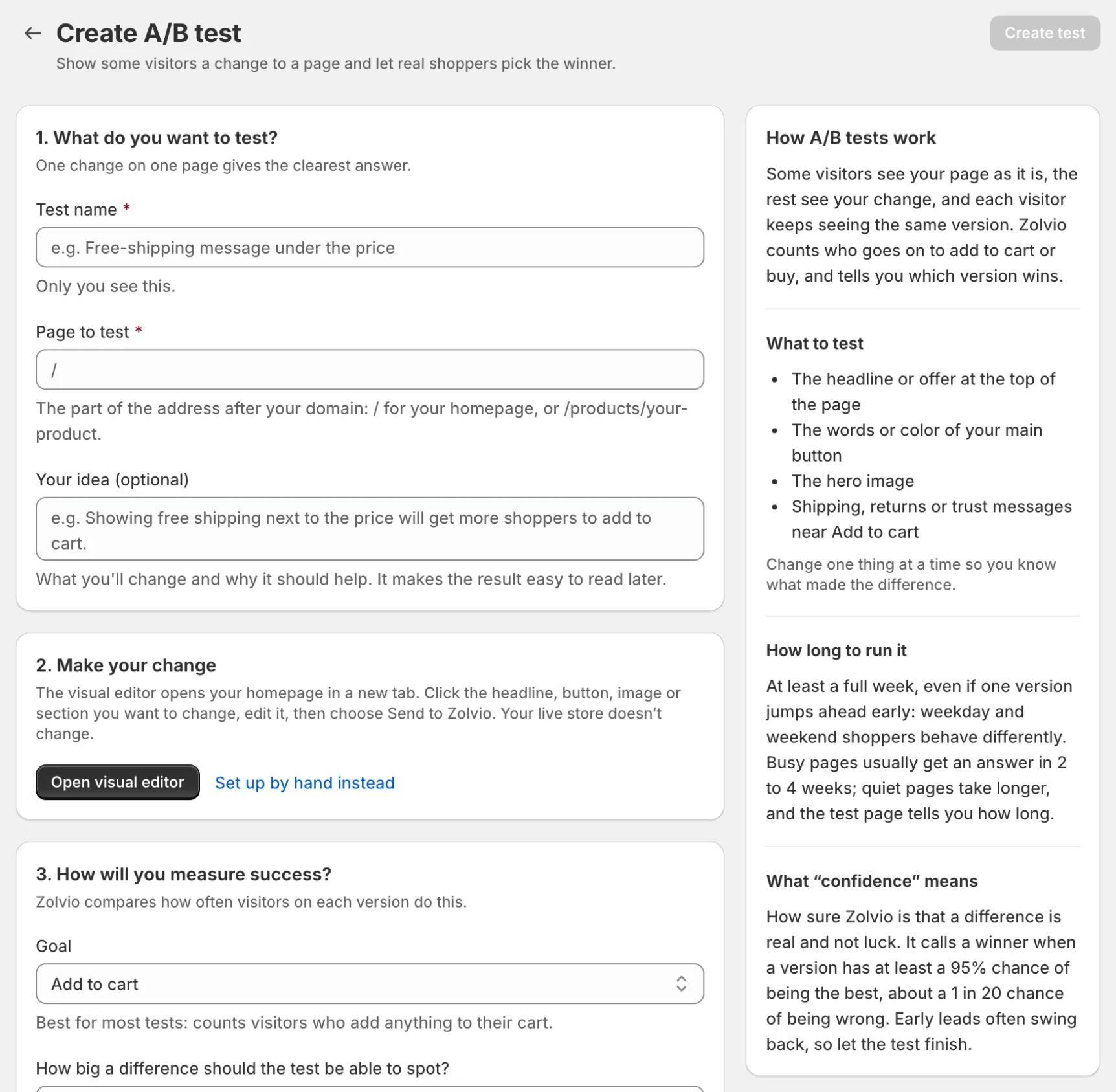
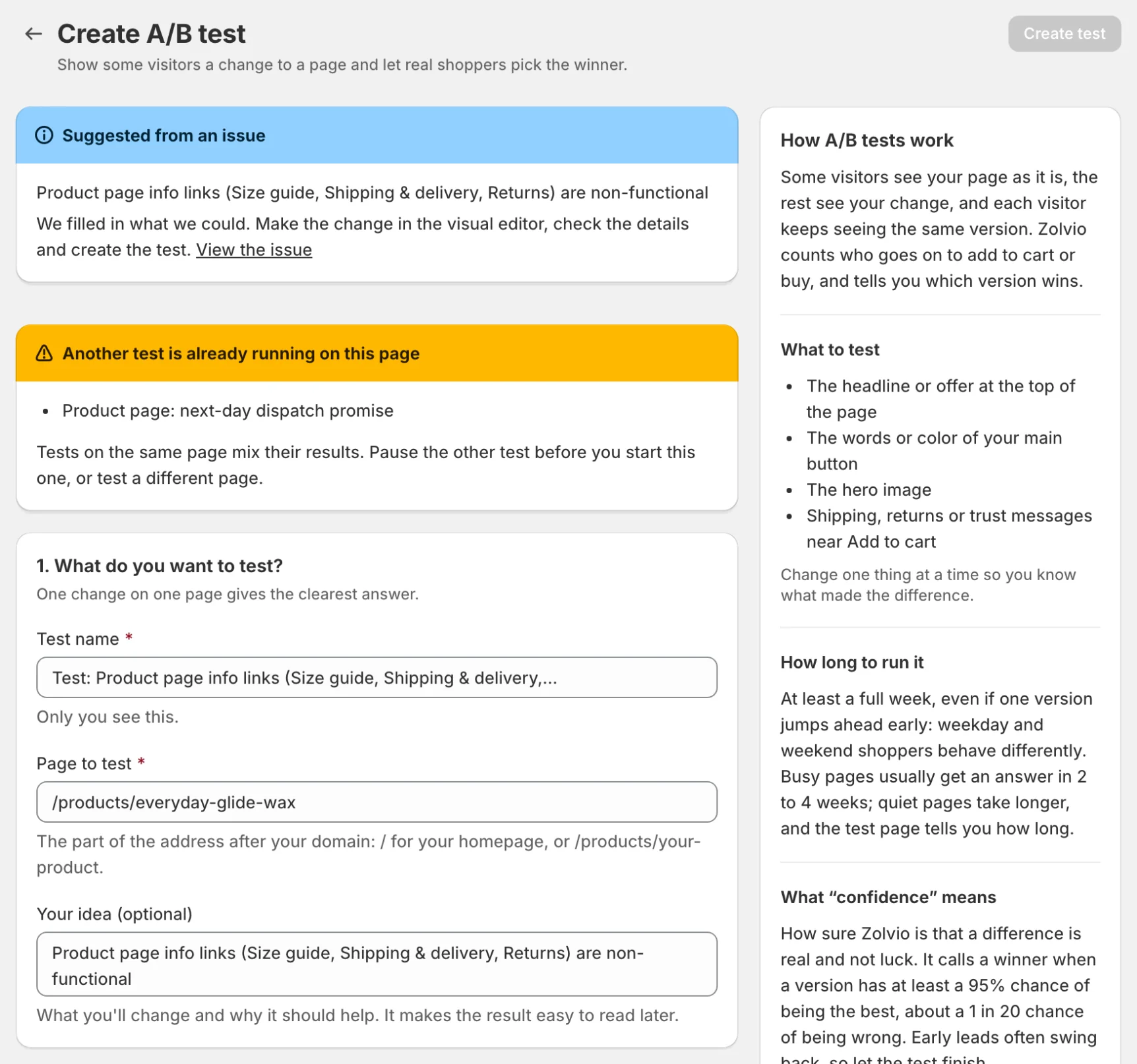
- Go to A/B tests in the sidebar and click Create test. (From an issue, you can also click Test this change to start a test of its fix on the affected page.)
- What do you want to test? Name the test and choose the page it runs on.
- Make your change. Click Open visual editor to edit your live store by pointing and clicking (see Visual Editor). Developers can choose Set up by hand instead for CSS selectors, a Split URL test, or more than one variant (A/B/n).
- How will you measure success? Choose your goal: add to cart, reach checkout, purchase, or a click.
- Optionally, choose Who sees the test, then start it.
For enabling the theme extension and common Shopify gotchas, see Setup.
The visual editor
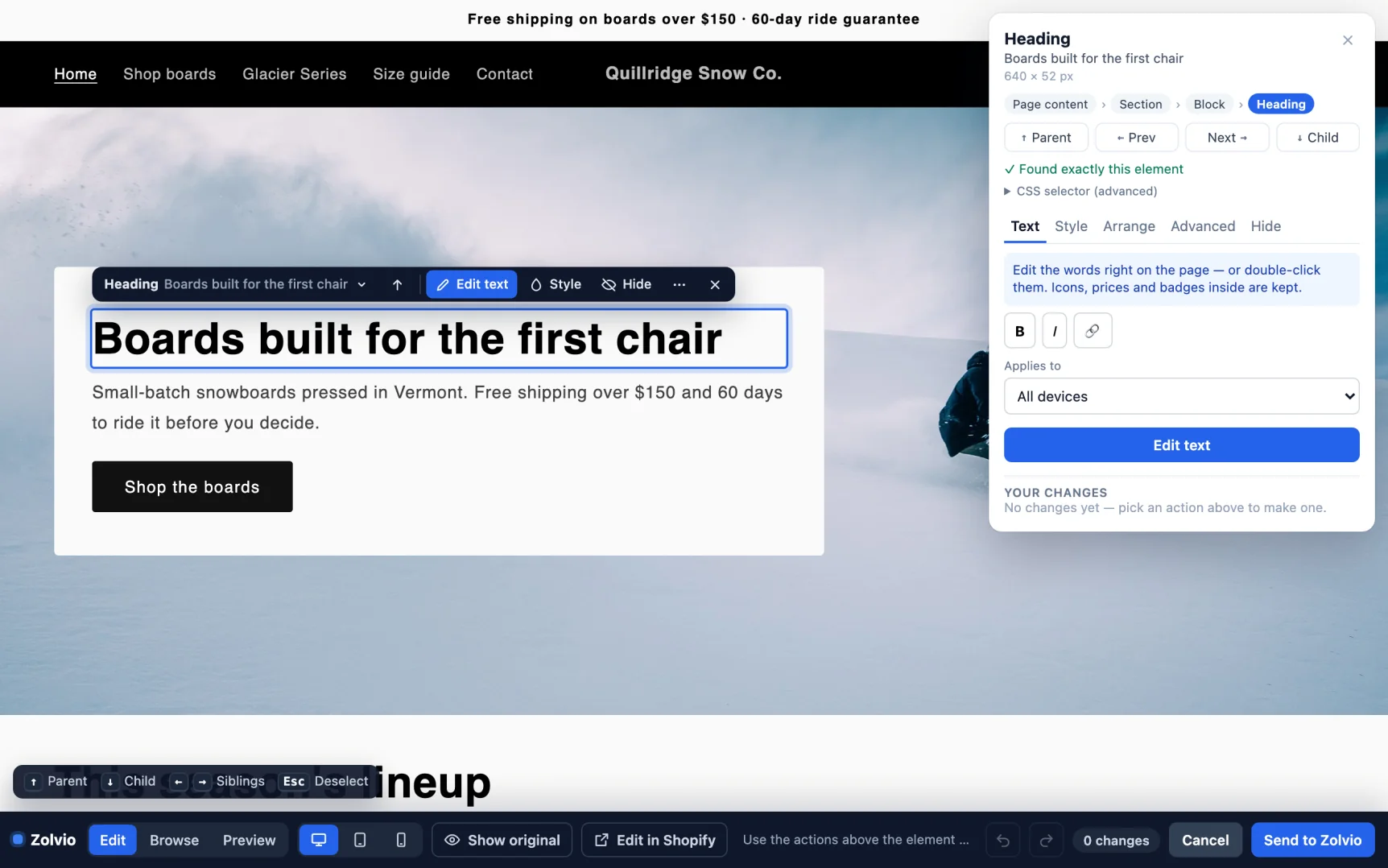
The visual editor opens your real storefront in a new tab with a Zolvio toolbar. Click any element to change it—no CSS required:
- Edit text
- Change background or text color
- Swap an image
- Hide or show an element
- Stack several changes into one variant, and preview them live before saving
When you’re done, choose Send to Zolvio and your changes appear back in the test setup. Full walkthrough: Visual Editor.
Multiple variants (A/B/n) & traffic split
Test more than one idea at once by adding extra variants. Traffic is split evenly between the original and your variants by default; you can change each version’s share (whole percentages that add up to 100). An even split reaches a result fastest, so give a version less traffic only to limit its exposure. Zolvio compares every arm—including the control—and reports each one’s chance of being the best.
Reading results
The test page is one page, ordered by the questions you’ll ask:
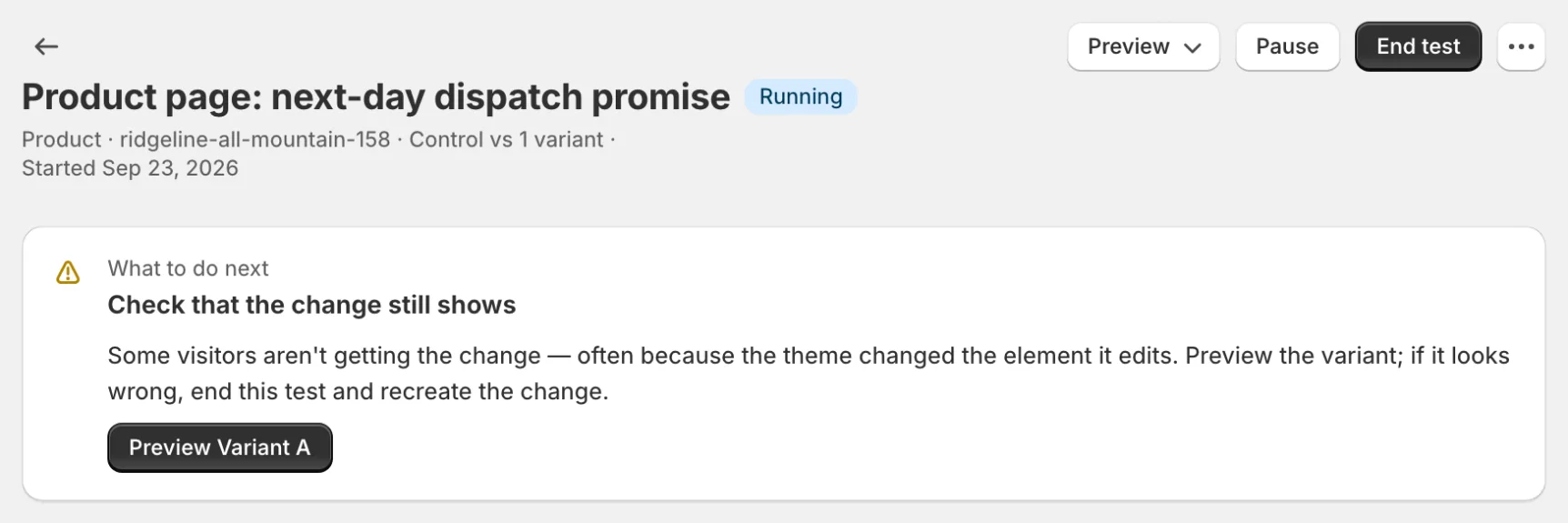
- What should I do now? The What to do next card at the top gives one recommendation with the button that carries it out: start the test, keep it running, check that the change still shows, ship the winner, or end a test that shows no real difference.
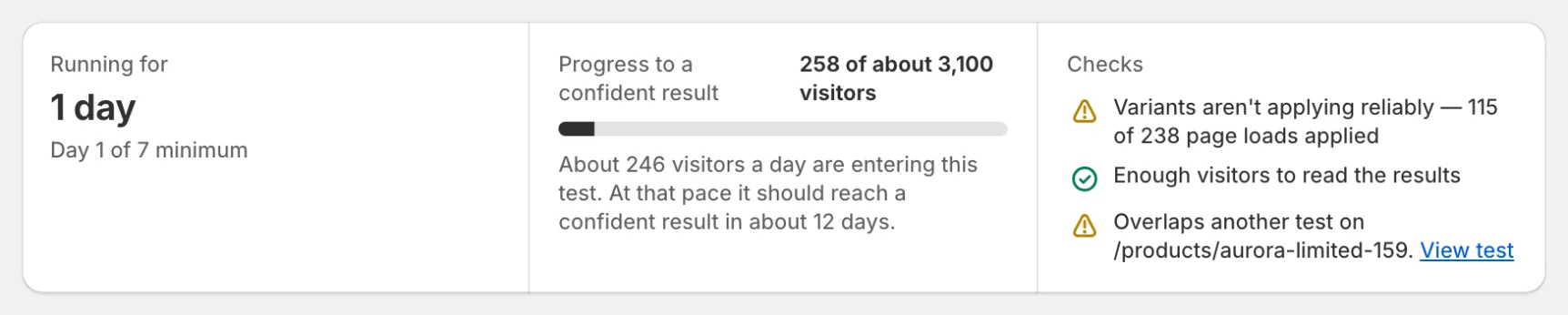
- Is it healthy? The top card shows how long the test has run, progress toward a confident result in plain words (“8 of about 110,000 visitors · about one visitor a week is entering this test”), and a Checks list: variants showing correctly, enough visitors, no overlapping test.
- Is there a winner? Results so far shows a No winner yet or Winner badge, the confidence, a Chance to win bar, and a table with visitors, conversions, conversion rate and lift per variant. On a purchase goal the table adds revenue per visitor and average order value. A test that can’t reach its visitors at its current pace shows Unlikely to reach a result.
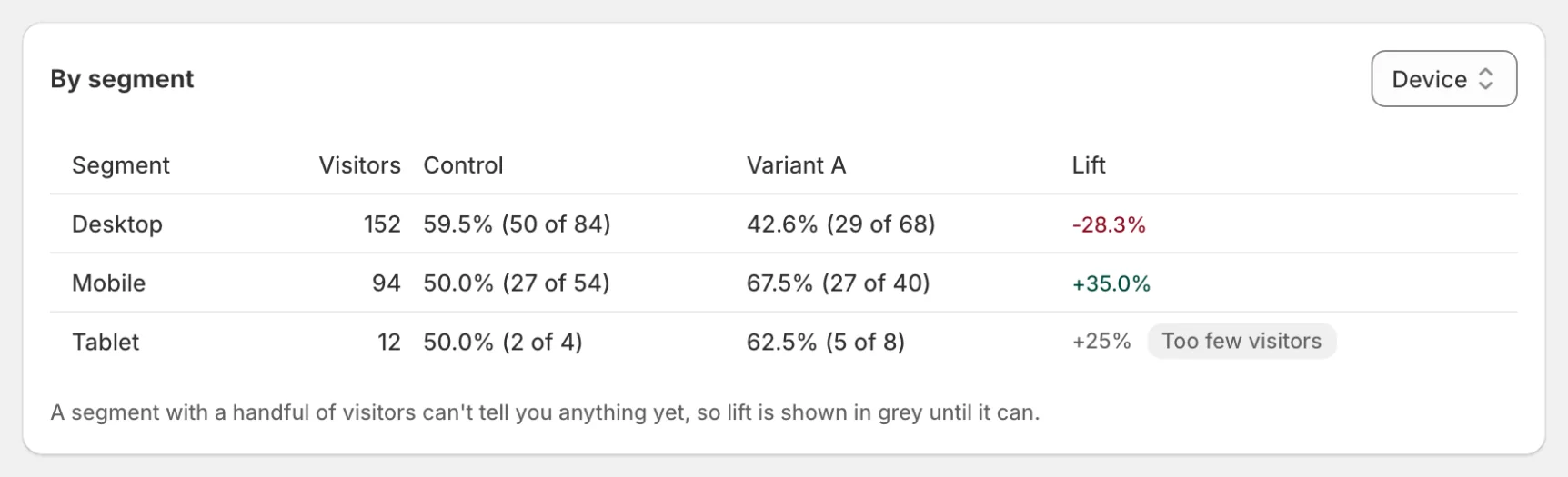
- Who does it work for? By segment splits the result by device, visitor type, traffic source, country, UTM source or UTM campaign, and greys out lifts that rest on too few visitors. Country and UTM segments list the 20 largest.
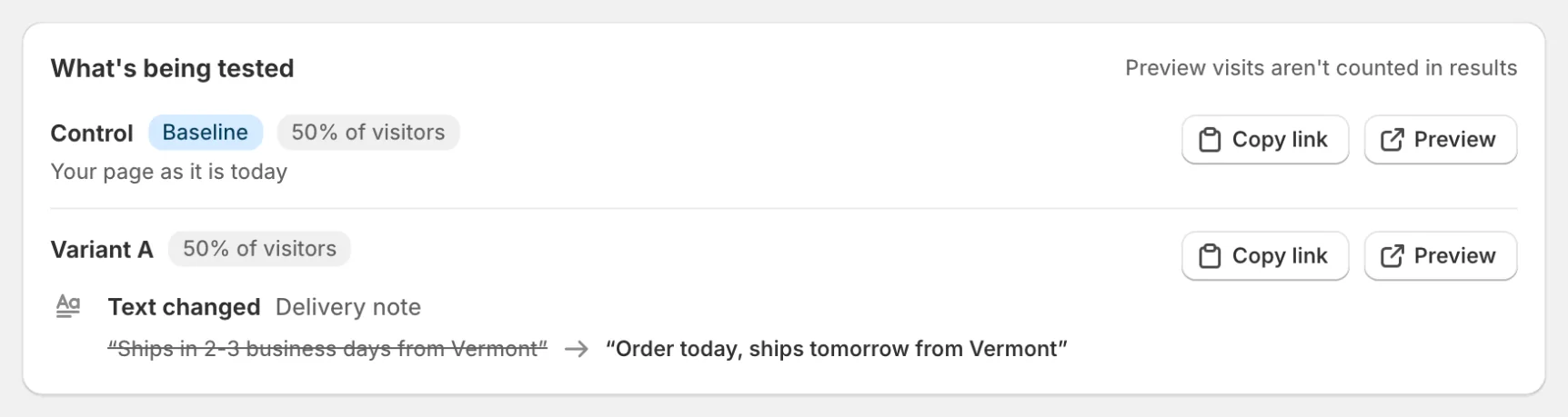
- What’s being tested? Each variant’s changes as a before → after list, with Copy link and Preview.
- Technical details holds the rest: test ID, deduplication rule, results over time, traffic-split and delivery tables, advanced statistics, AI insights and exports: the configuration, results and daily numbers as CSV or JSON, and Raw events (CSV) with every stored impression, conversion and delivery event.
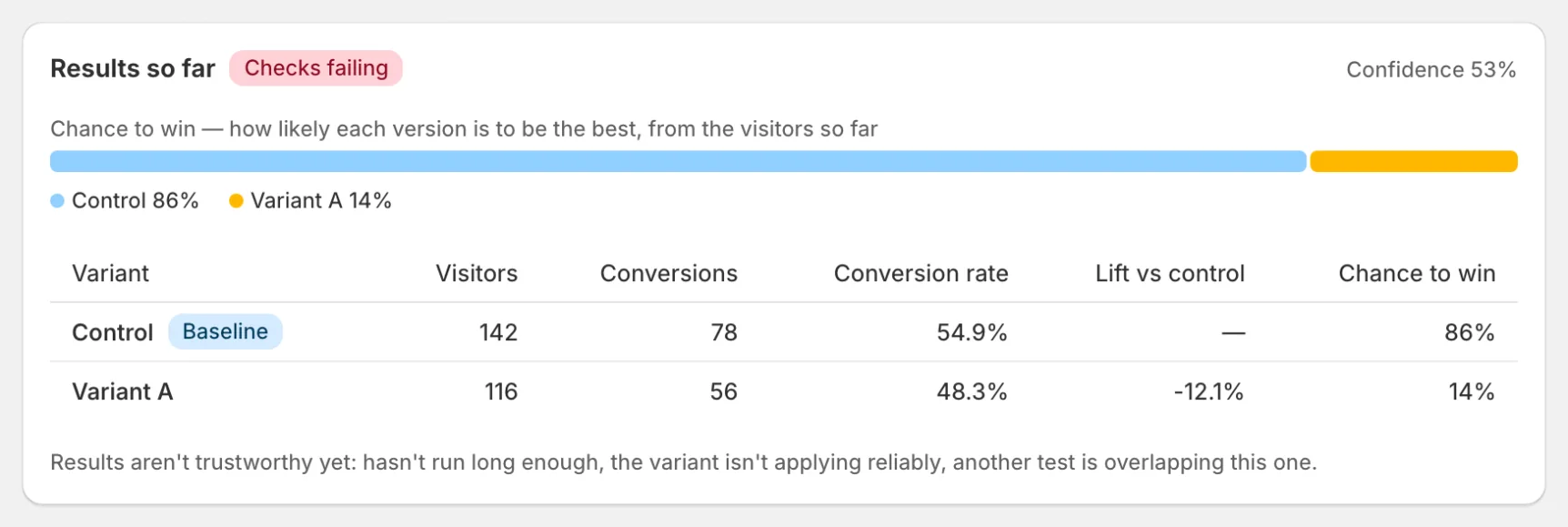
The verdict is honest about data quality: Zolvio won’t call a winner while a test is too new, under-sampled, has a skewed split (SRM), or a variant isn’t applying reliably—and the control is allowed to win. Deeper frequentist and Bayesian numbers live under Technical details → Advanced stats for when you want them.
When you have volume, use heatmaps and recordings by variant to explain why a variant won. See Heatmaps & Recordings, and Goals & Attribution for what counts as a conversion.
Publishing a winner
When you’re ready to act, you have three clear choices—see Publishing a Winner:
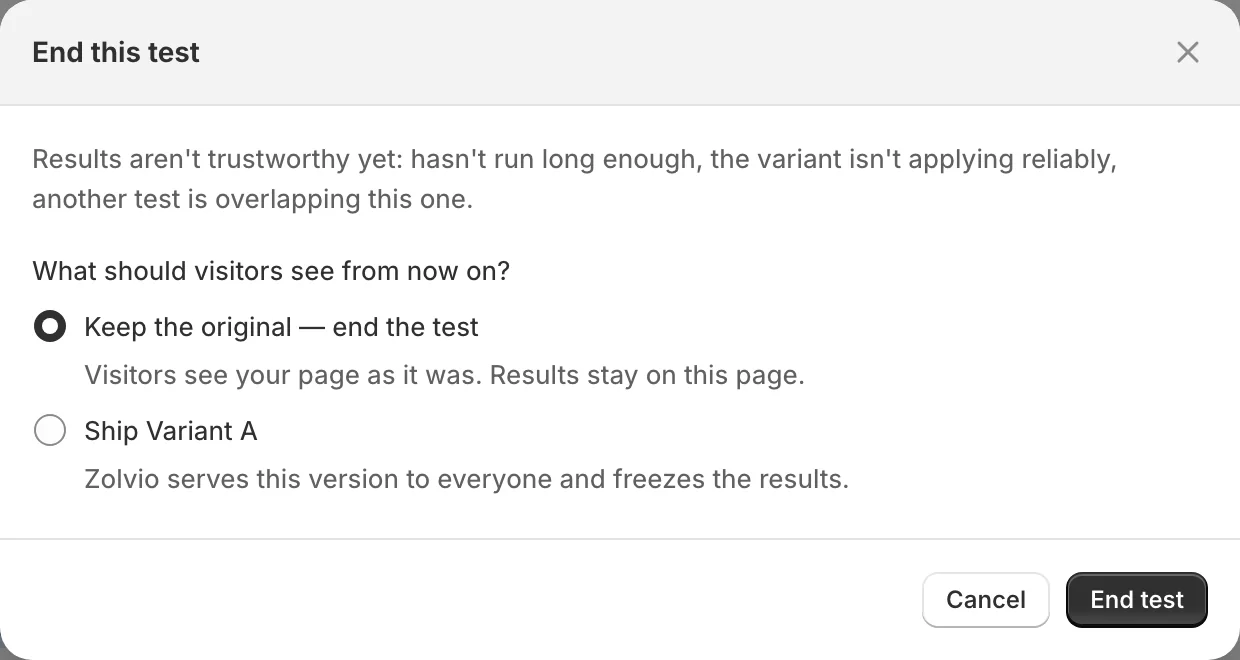
- Roll out the winner to 100% of visitors through Zolvio (results freeze; delivery continues—no theme edits needed).
- Make it permanent in your theme with a copy-paste snippet.
- End the experiment to stop serving and finalize the results.
AI insights (optional)
Zolvio can generate a short, plain-English explanation of your test: the winner narrative, data-quality notes, key segments, and recommended next actions. This is optional and may be limited by your plan’s AI caps. See AI Usage & Controls.
Test limits
- Free: No A/B testing
- Starter: 1 concurrent test
- Growth: 3 concurrent tests
- Pro: 10 concurrent tests
More
- Setup — enable the theme extension and create safely
- Visual Editor — point-and-click editing
- Publishing a Winner — roll out, make permanent, or end
- Targeting — device, country, UTM, and traffic sampling
- Anti-Flicker — avoiding a flash of original content
- Statistics — how to read the advanced views
- QA & Troubleshooting — if variants aren’t applying