Visual Editor
Change your storefront by pointing and clicking—no code. The editor runs on your real store, so what you edit is exactly what visitors will see.
How it works
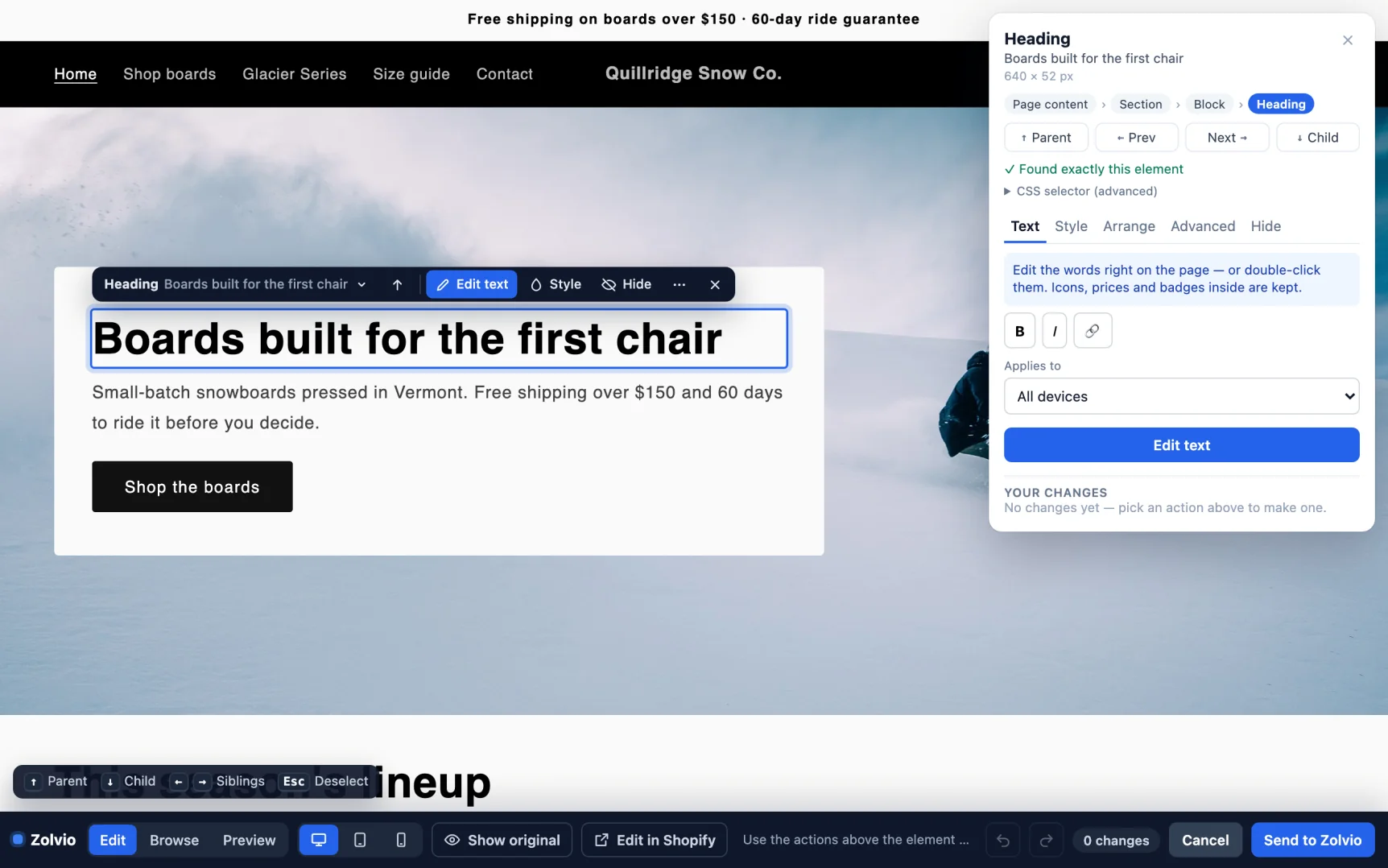
From a Visual-change test, click Open visual editor. Zolvio opens your live storefront in a new tab with a Zolvio bar along the bottom. You edit the page directly; when you’re done, your changes are sent back to the test you were setting up.
Why a new tab?
Editing an element
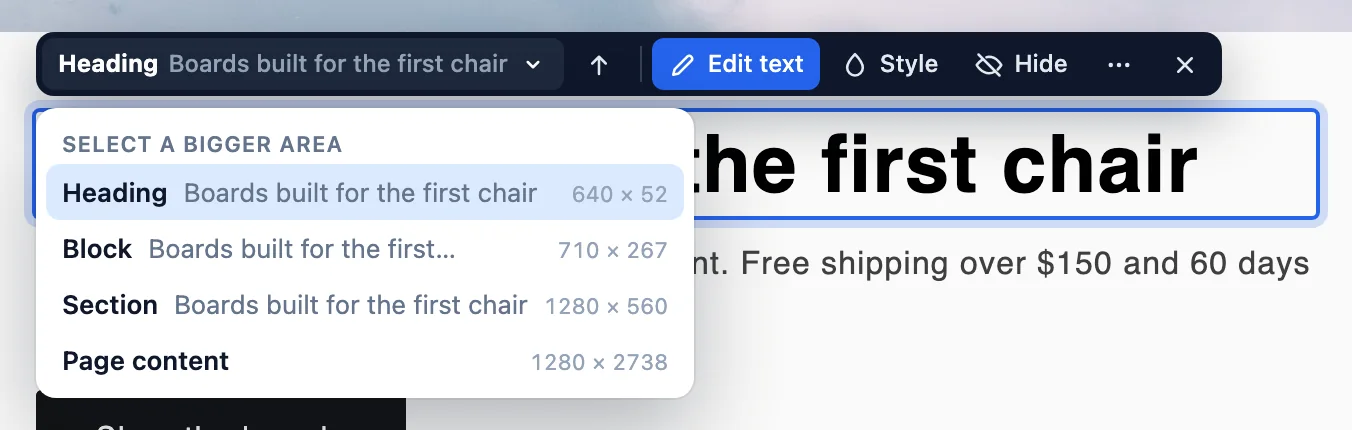
- Hover to highlight an element, then click it.
- Zolvio automatically works out a stable way to target that element (a “selector”)—you don’t need to know any CSS.
- Choose what to change and enter the new value:
- Text — replace the wording
- Style — colors and other styles
- Image — swap the image
- Hide — remove it from the page
- The change applies live on the page, so you see it before you send it to Zolvio.
Multiple changes in one variant
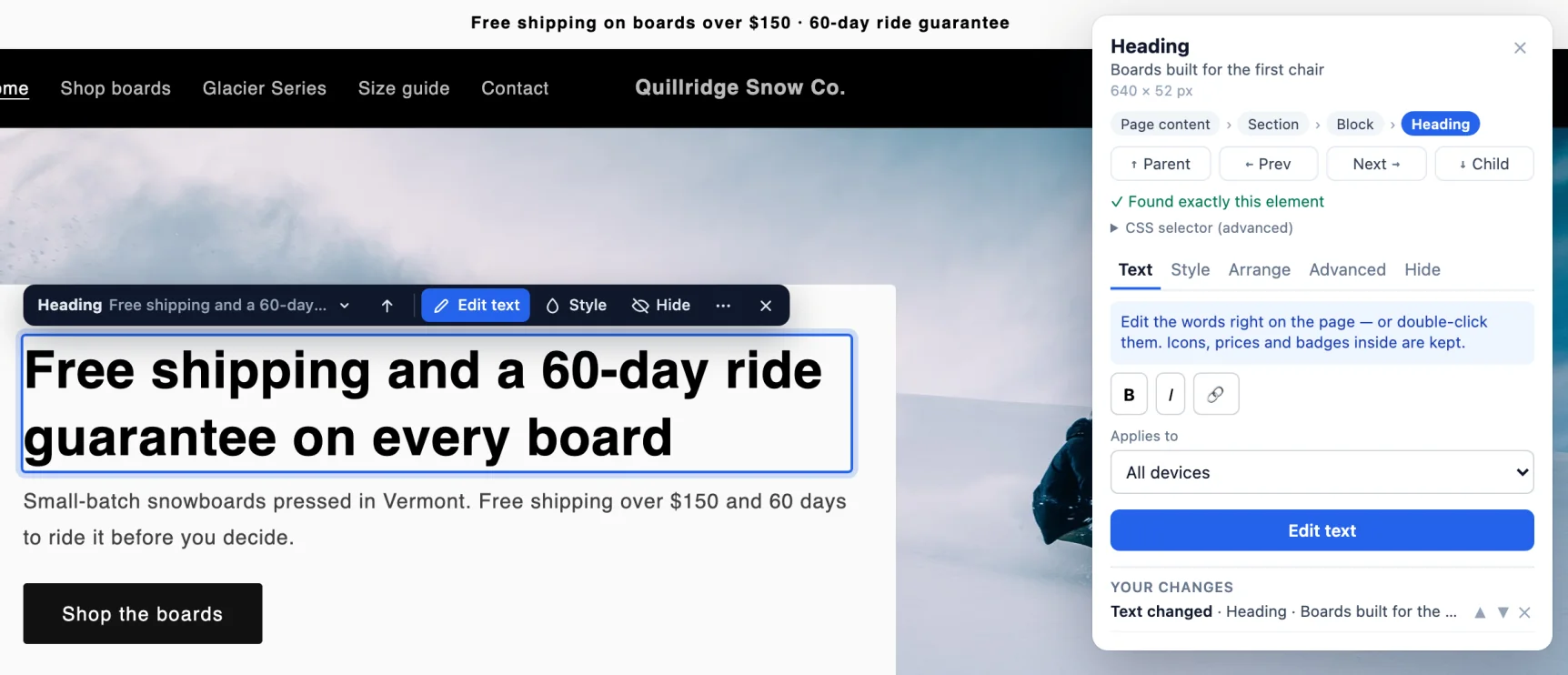
Keep clicking and editing to stack several changes into the same variant—for example, change a headline, recolor the “Add to cart” button, and hide a banner. The toolbar shows how many changes you’ve made, and they’re previewed together.
Editing more than one page
Switch the toolbar to Browse to move around your store like a visitor—links work, but nothing is added to the cart or submitted. Switch back to Edit on any page and keep adding changes. Every change remembers the page it was made on, so one variant can restyle the home page, a collection, and a product page together. Visitors are only enrolled in a multi-page test on the pages you actually changed, which keeps the results fair, and multi-page tests measure add-to-cart, checkout, or purchase goals.

Saving your work
When the variant looks right, click Send to Zolvio. Return to the Zolvio tab to finish choosing your goal and audience, then start the test.

Before you open the editor
Prefer to type selectors?
You can still enter CSS selectors and values manually in the test form—useful for advanced cases or when you already know the exact selector. The visual editor is just the fastest way to get there.