Password-Protected Stores
If your online store has a storefront password—common for development stores, pre-launch stores, and stores in maintenance mode—Zolvio needs that password to see your pages the way a visitor would. Save it once in Settings and audits and page screenshots work normally.
Which features need the password
Anything where Zolvio’s own servers load your storefront pages:
- Audits — the crawler and the desktop/mobile page captures
- AI in audits and fixes — the screenshots reviewed during audits
- Heatmap screenshots — the page image behind click and scroll overlays
Verify fix doesn’t need it: it reads your theme files through Shopify, not your storefront.
Features that run in your visitors’ browsers don’t need it. Session recordings, heatmap click and scroll data, surveys, and A/B test delivery keep working on a password-protected store as long as the theme app embeds are enabled.
Save your storefront password
- In Zolvio, open Settings and scroll to Storefront password. When an audit was blocked by the password page, the Audits page also shows a banner with an Add storefront password button that takes you there.
- Enter the password from your Shopify admin under Online Store → Preferences → Password protection.
- Click Save password. Zolvio checks it with your store before saving it, the same way a visitor would sign in. A password your store doesn’t accept is not saved.
- When the badge shows Working, run (or re-run) your audit.
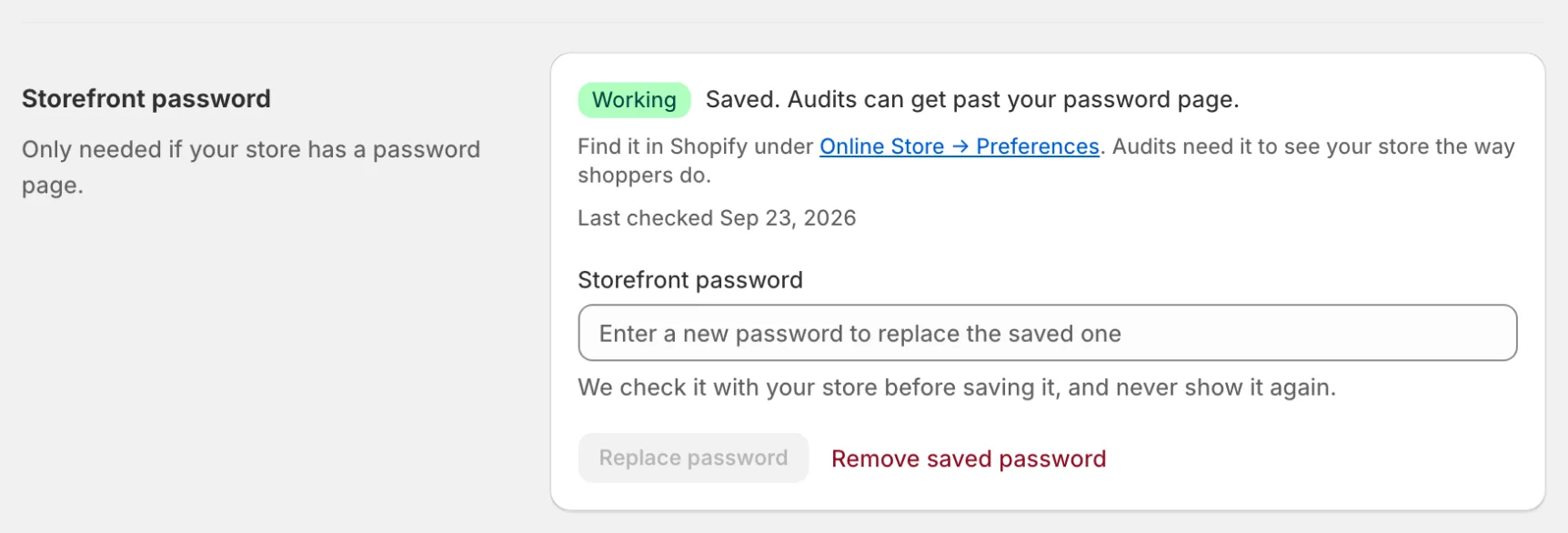
What the status badge means
- Working — the password is saved and your store accepts it. Audits can get past your password page.
- Not working — your store no longer accepts the saved password, usually because it was changed in Shopify. Enter the new one.
- Not checked — the password is saved, but Zolvio couldn’t reach your store to check it. Try saving it again in a few minutes.
- Needed — your store has a password page and no working password is saved yet.
If your store has no password page, there is no badge: the section says your store is open to shoppers and there is nothing to set up. Just added a password page? Click Just added a password page? Enter the password.
Audit failed with “Your storefront is password-protected”
Changing or removing the password
- If you change the password in Shopify, enter the new one in Zolvio and click Replace password. Until you do, the badge switches to Not working the next time Zolvio checks.
- If you remove password protection in Shopify, there is nothing to do—Zolvio detects that the store is open. If a password is still saved, the section says it isn’t needed anymore and offers Remove it.
- To delete a saved password while your store is protected, click Remove saved password.
- Zolvio never changes your Shopify password settings.
How the password is protected
- The field is write-only: after saving, the password is never displayed again—not even to you.
- It is encrypted at rest with a key separate from the rest of your store data.
- It is only ever sent to your own storefront to sign in—never to third parties or AI providers.
- It is erased when your store data is deleted after you uninstall Zolvio.
Visual editor on a password-protected store
The saved password is used by Zolvio’s servers, not by your browser. The A/B visual editor opens your live storefront in a new tab, so your browser has to be signed in to the storefront first:
- Open your storefront in the same browser and enter the password.
- Go back to Zolvio and click Open visual editor.
If you enter the password only after the editor tab opens, the editor toolbar won’t appear. Close that tab and click Open visual editor again now that the store is unlocked. See Visual Editor.
Development stores