A/B Testing Setup
Turn on the Zolvio A/B Testing app embed, create your first test safely, and avoid common Shopify pitfalls.
Turn On the App Embed
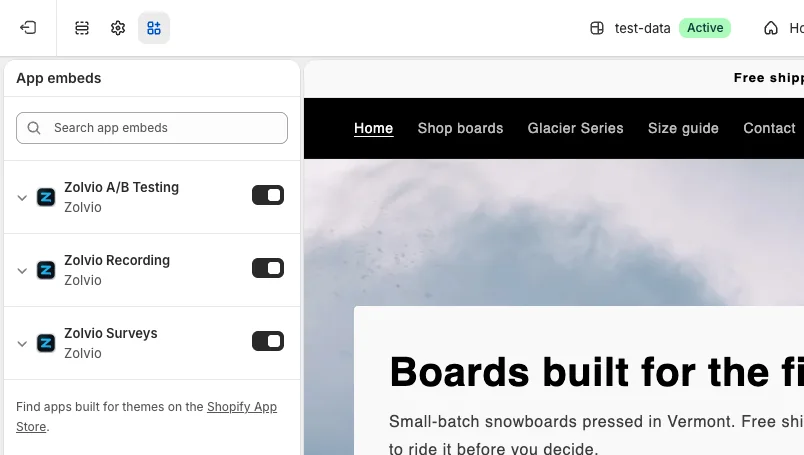
- In Zolvio, open Settings → App embeds and click Open theme editor (or, in Shopify admin, go to Online Store → Themes and click Customize)
- Open App embeds in the theme editor’s left sidebar
- Turn on Zolvio A/B Testing
- Click Save
Create a Test Safely
- Start with a single, high-impact page (homepage or product page)
- Build the change in the visual editor by pointing and clicking—or choose Set up by hand instead to type CSS selectors or run a Split URL test
- Keep each variant focused so results are easy to interpret
- Preview first, then start the test
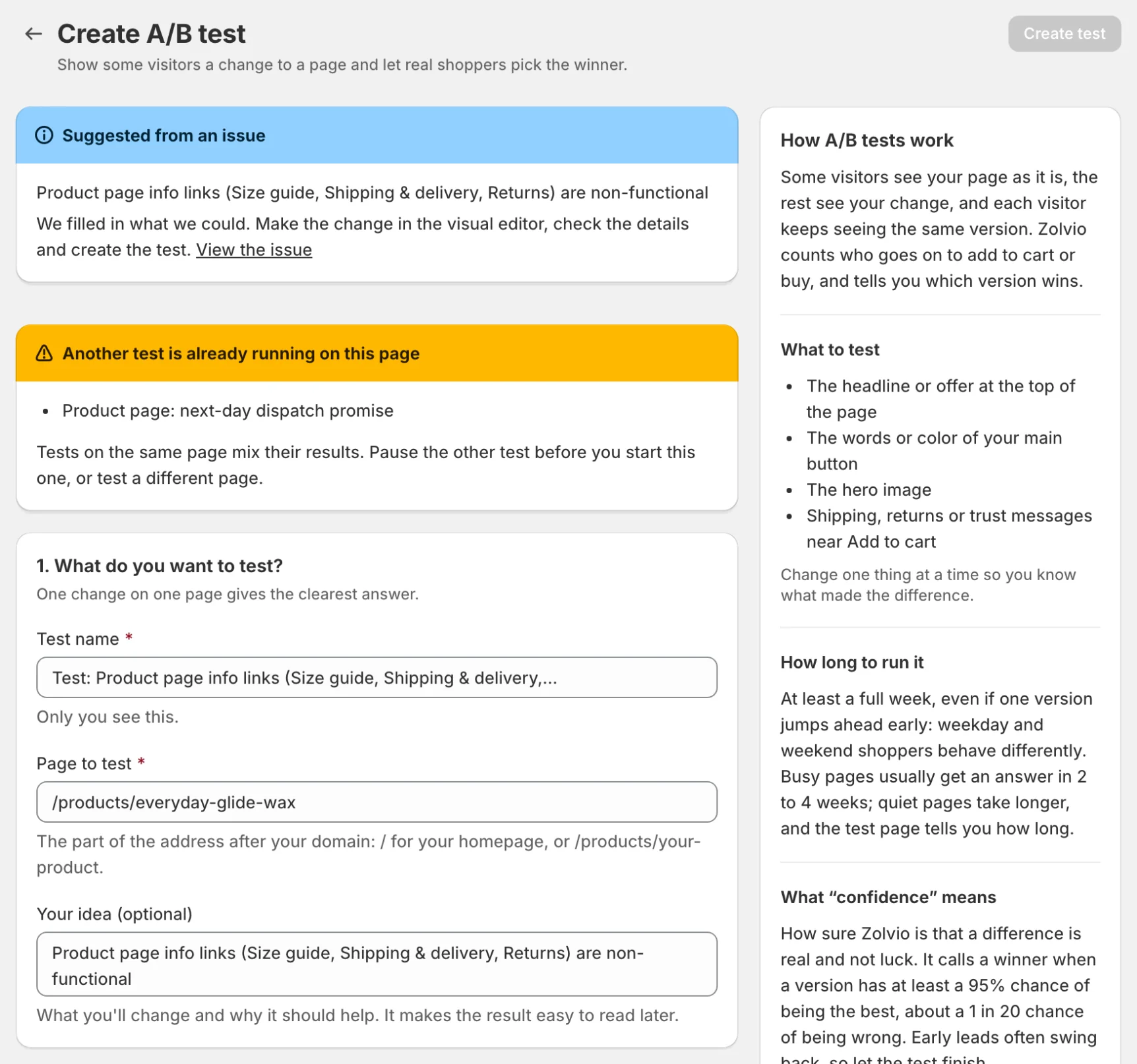
Overlapping tests are blocked by default
Multiple tests on the same page can interfere and make results unreliable, so Zolvio blocks starting an overlapping running test by default. Run tests on different pages, or finish one before starting another on the same page.
Consent and Exclusions
A/B test assignment runs for every visitor so each one sees a consistent version; it uses a random ID and a 30-day cookie and never records the session. Tests don’t run on checkout, account, order or login pages. See Cookie & Consent.
Next
- Visual Editor: point-and-click editing
- Publishing a Winner: roll out, make permanent, or end
- Anti-Flicker: how the page avoids flashing
- Goals & Attribution: what counts as a conversion