Verify & Track Fixes
You make the change in Shopify; Zolvio checks that it’s there and the next audit confirms it.
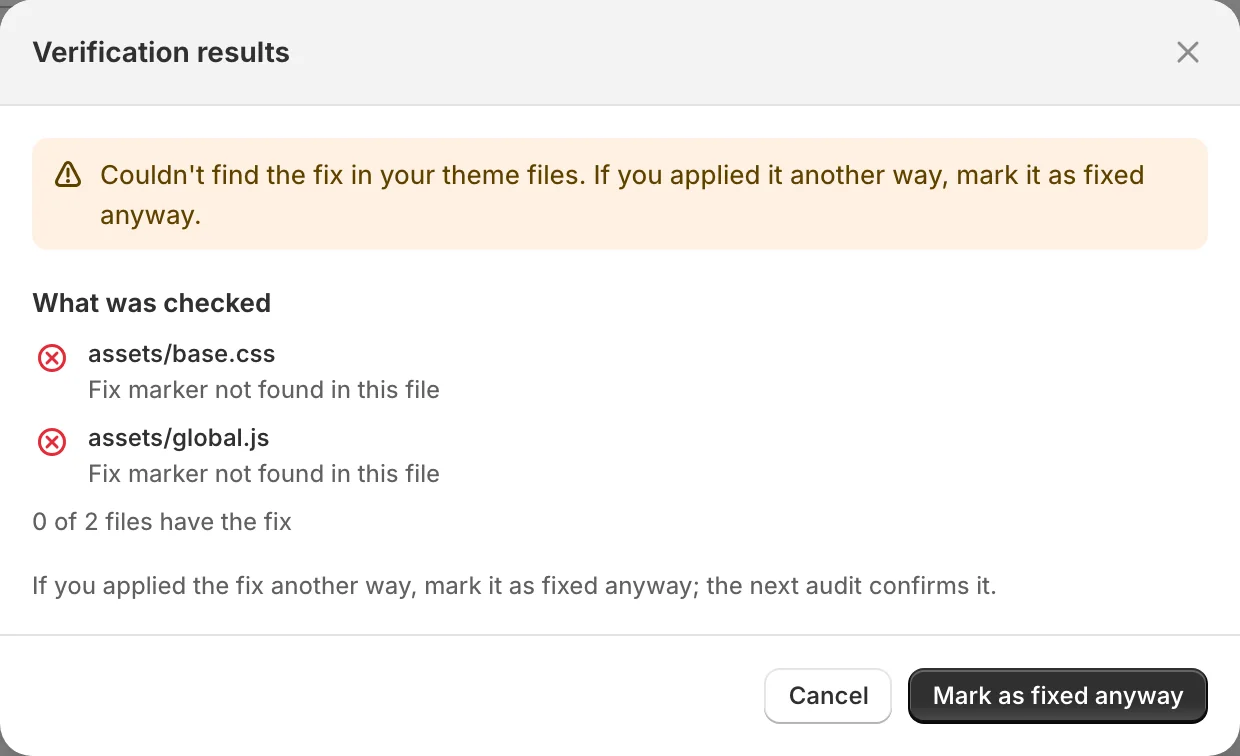
Verify Fix
After you save the change, click Verify fix at the top of the issue page. Zolvio checks your published theme’s files for the change and marks the issue fixed. The result lists the files it checked, so you can see where the fix was found.
- Best for code steps, where the change can be found in a theme file
- Changes made in the theme editor or Shopify settings can’t always be found in files. If you made the change another way, click Mark as fixed anyway; the next audit confirms it.
Fixes Waiting for Confirmation
Fixing an issue lowers your open issue count right away. The health score only moves when an audit runs, so the dashboard counts your fixes waiting for confirmation until the next audit confirms them and updates your score.
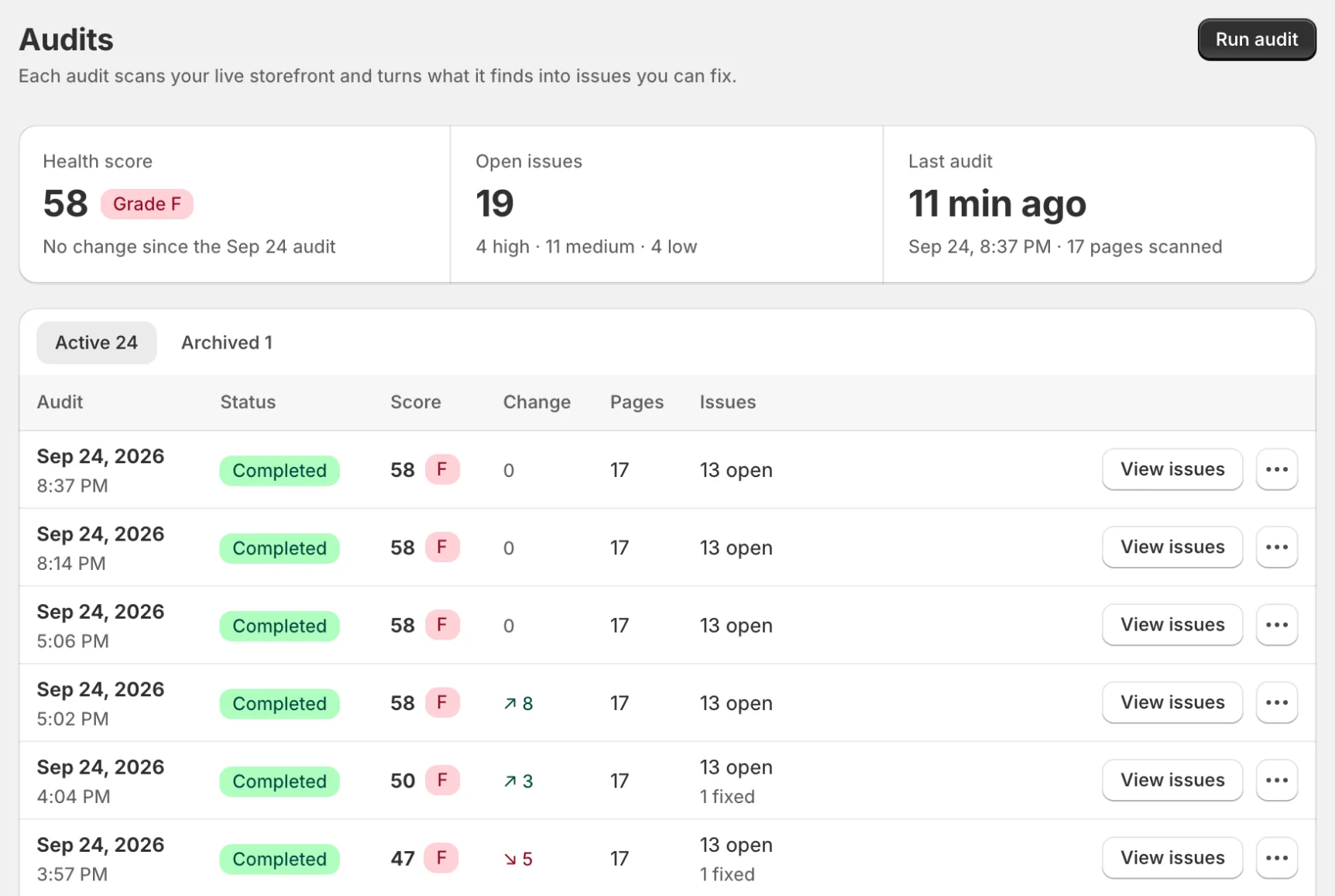
Mark as Fixed
Mark as fixed (in the issue’s More actions menu) records the issue as fixed for your team. It does not change your theme.
- Use it to track progress and keep your “Open issues” list focused
- Run an audit after publishing changes to confirm improvements
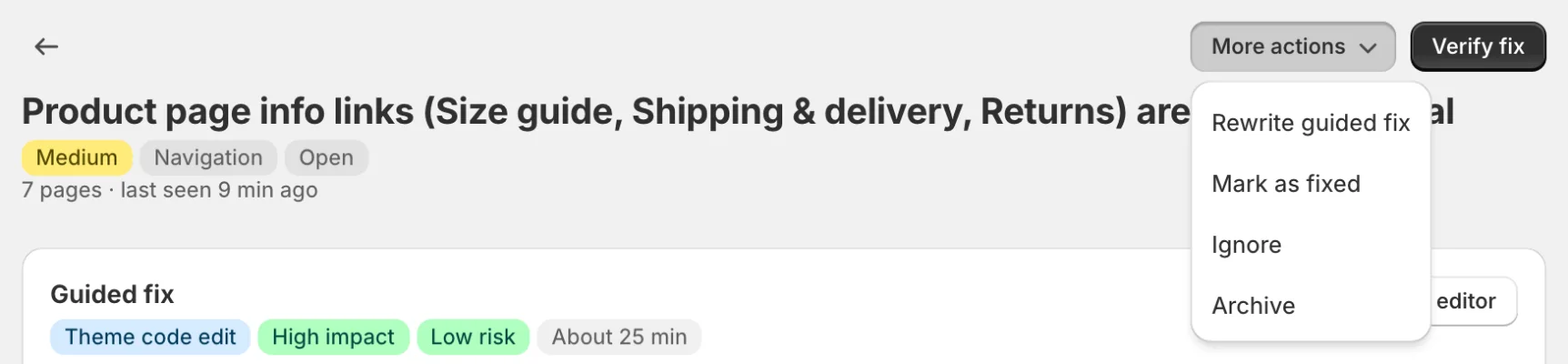
How to Undo a Change (in Shopify)
If something breaks after you change your theme, undo it in Shopify:
- Go back to an older version of the file in Shopify’s code editor
- Or publish the copy of your theme you made before you started
Before your next fix