Before You Edit Your Theme
Zolvio never edits your theme. Guided fixes are changes you make yourself, so keep a restore point before you start.
Keep a Restore Point
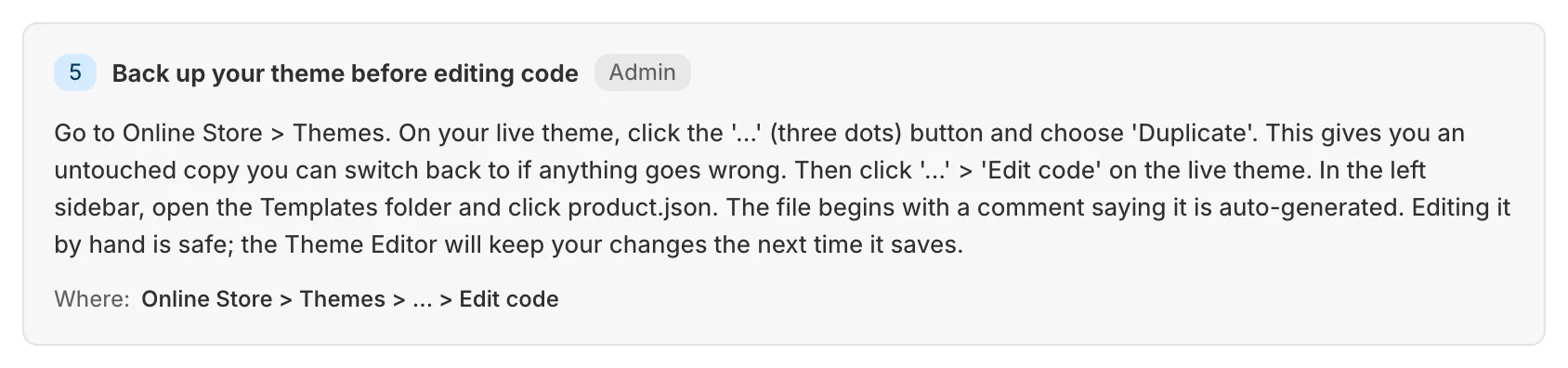
- Open Online Store → Themes in your Shopify admin
- On your live theme, open the … menu and choose Duplicate. The copy is your restore point.
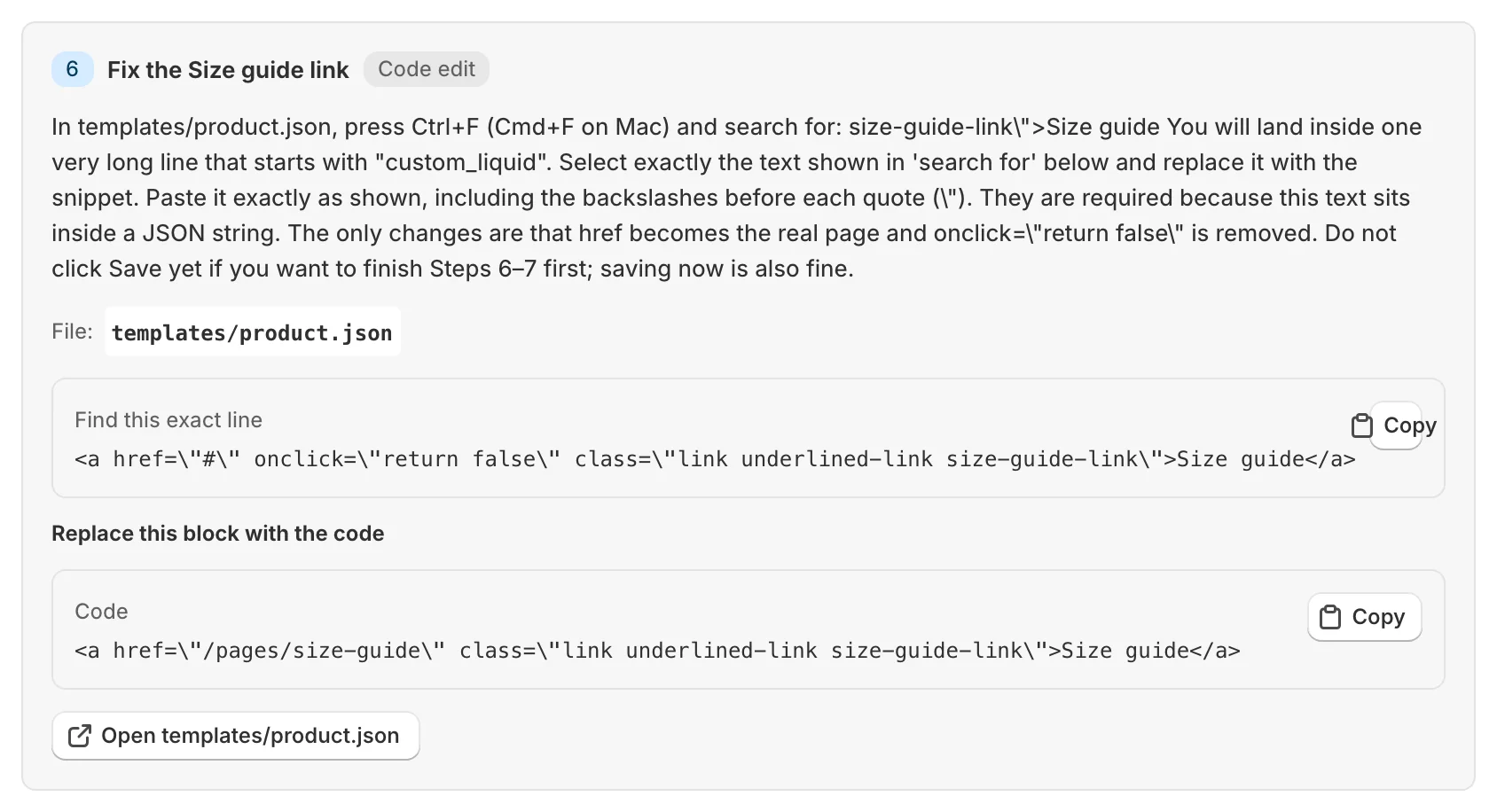
- Back in Zolvio, follow the guided fix: Open <file> takes you to the exact file in your live theme’s code editor
- Save the change, check the page on your storefront, then click Verify fix
Prefer to Try It on a Copy First?
Make the change on the duplicate instead, use Preview to check key flows (home → product → add to cart → cart), then Publish it. Verify fix checks your published theme, so click it after you publish.
If Something Breaks
- Undo a single file in Shopify’s code editor by going back to one of that file’s older versions
- Or publish the copy you made before you started
Tip
If you make several fixes at once, keep a simple changelog (what you changed + where) so you can undo a change quickly in Shopify if needed. See Verify & Track Fixes.