Dashboard
The dashboard is your “10-second answer”: what’s broken, is data flowing, and what should you do next.
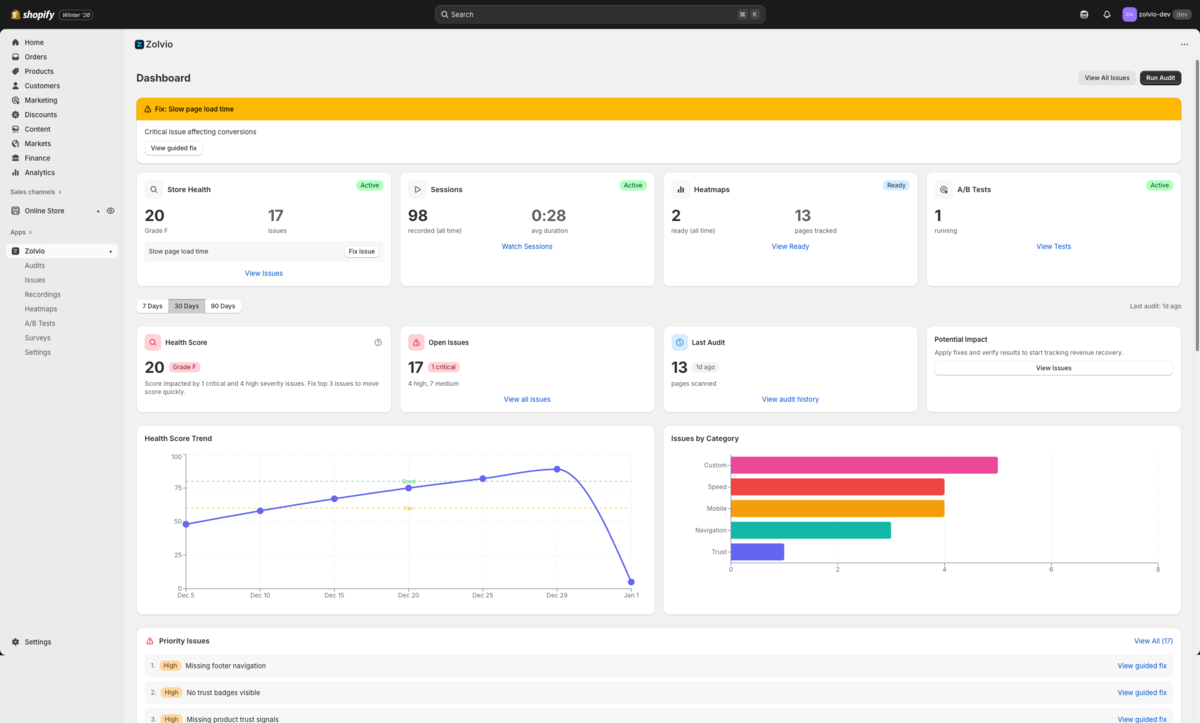
Screenshot placeholder
1200×700px •
/docs-images/dashboard/dashboard-overview-1200x700.pngAdd a file at this path to replace the placeholder.
Setup checklist
The setup checklist helps you confirm the storefront extension is enabled and data is arriving. If a feature is in Collecting state, send traffic to your store and check again later.
- If recording isn’t enabled, follow Recording setup.
- If A/B testing isn’t enabled, follow A/B setup.
- If surveys aren’t enabled, follow Survey setup.
Next best action
Zolvio suggests a single next step based on your current state: run an audit, fix a critical issue, review a ready heatmap, or check an active test.
Workflows
If you’re not sure what to do, start with Workflows. It’s the recommended detect → prove → fix loop.
Time range
Some metrics are time-ranged (last 7/30/90 days). Others may be “all time” (e.g., total recorded sessions). When in doubt, click into the module (Sessions/Heatmaps/Tests) and apply a date filter there.
Common dashboard messages
- AI disabled: AI features are turned off in settings or AI caps are reached. See AI Usage & Controls.
- Quota reached: plan limits prevent more audits/surveys/tests until reset or upgrade. See Billing & Plans.
- No data yet: enable recording and send traffic to the storefront.