Verify & Track Fixes (v1)
In v1, Zolvio provides guided fixes and verification checks — you make the changes in Shopify. Use verification + re-audits to close the loop.
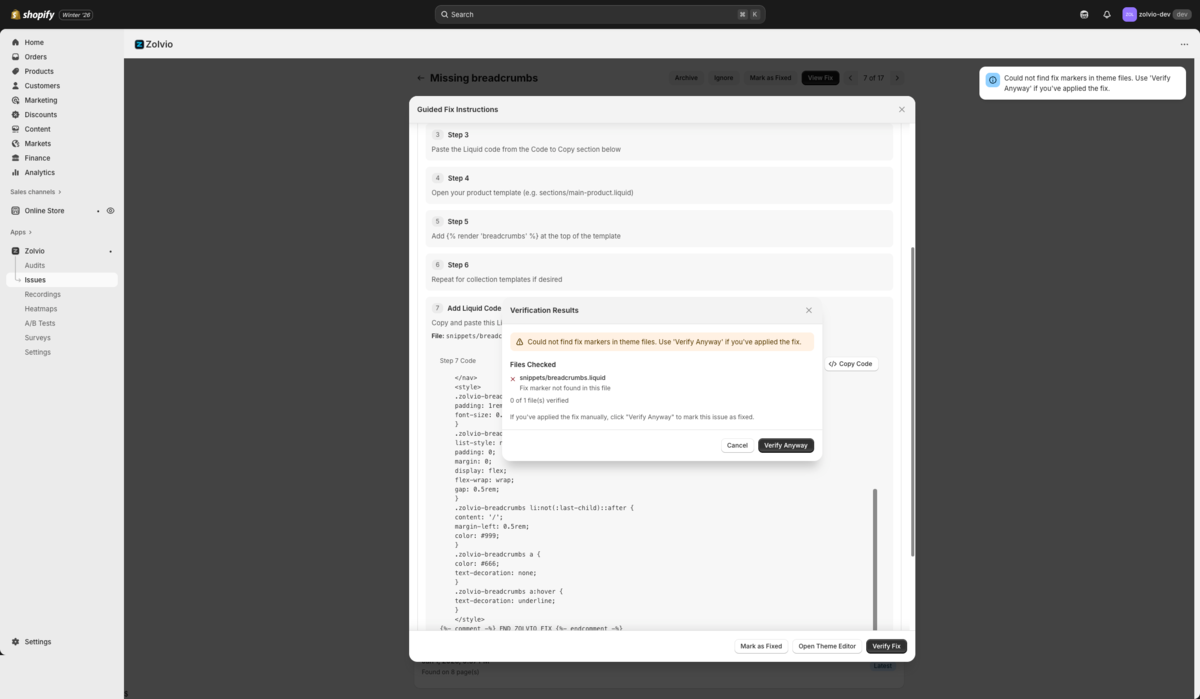
Screenshot placeholder
1200×650px •
/docs-images/issues/verify-fix-results-1200x650.pngAdd a file at this path to replace the placeholder.
Verify Fix
After you apply a guided fix in Shopify, use Verify fix to run a lightweight check (for example: “is the expected change present in the theme file?”). Verification helps you avoid marking issues as fixed when the change didn’t stick.
- Best for code snippet steps (CSS/JS/Liquid) where we can look for a marker or signature
- Less reliable for purely visual Theme Editor changes (manual confirmation recommended)
Mark as Fixed
Marking an issue as Fixed is a workflow signal for your team. It does not automatically apply changes to your theme.
- Use it to track progress and keep your “Open issues” list focused
- Re-run an audit after publishing changes to confirm improvements
How to Roll Back Safely (Shopify-native)
If something breaks after you publish changes, the safest rollback is through Shopify’s theme history:
- Publish your previous theme (if you used a duplicated theme)
- Or revert a specific file in the theme code editor using Shopify’s file history
For guided fixes, we recommend applying changes in a duplicated theme first. See Safe Theme Preview.
Coming soon: automated apply + rollback (v2)
We’re building an automation flow that can apply eligible fixes to a preview theme, verify key pages, and support safe rollback. For v1, Zolvio stays guided/manual.