Reviewing Sessions
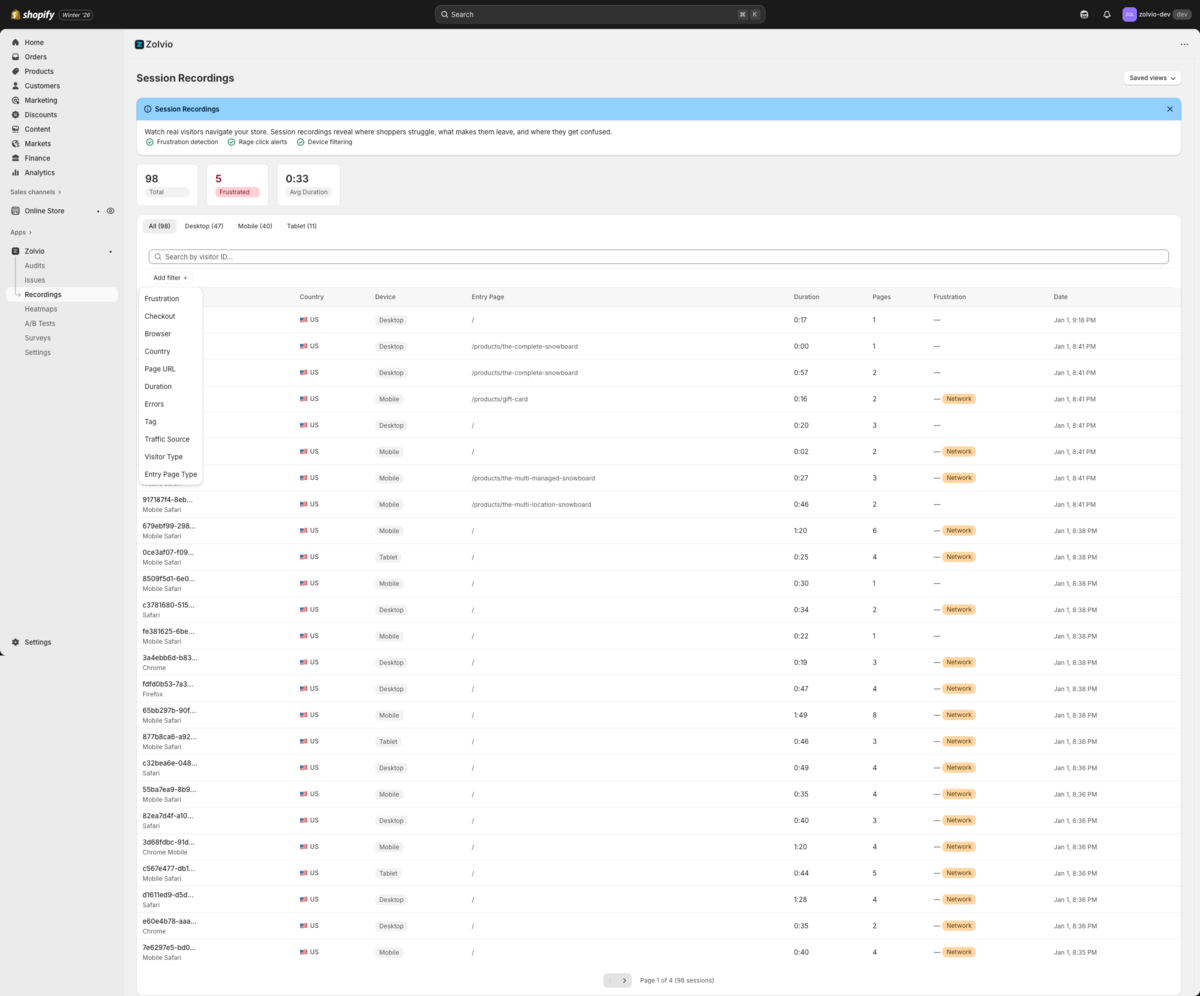
A fast way to get value from recordings is: filter → watch → tag → act. This page covers how to triage sessions, interpret timeline markers, and turn sessions into an action list.
Screenshot placeholder
1200×700px •
/docs-images/recordings/sessions-filters-1200x700.pngAdd a file at this path to replace the placeholder.
Start with the right filters
- Frustration: focus on sessions with rage clicks, dead clicks, or high frustration score.
- Page / entry page: filter to a specific funnel step (product pages, cart, collection pages).
- Duration: short sessions often indicate confusion; long sessions can indicate decision fatigue.
- Errors: filter sessions with JS errors or failed network requests (if enabled).
Privacy note
Recording respects consent and blocks sensitive paths (such as checkout/account). If recording is disabled or consent is denied, you’ll see fewer sessions and some pages won’t be recorded.
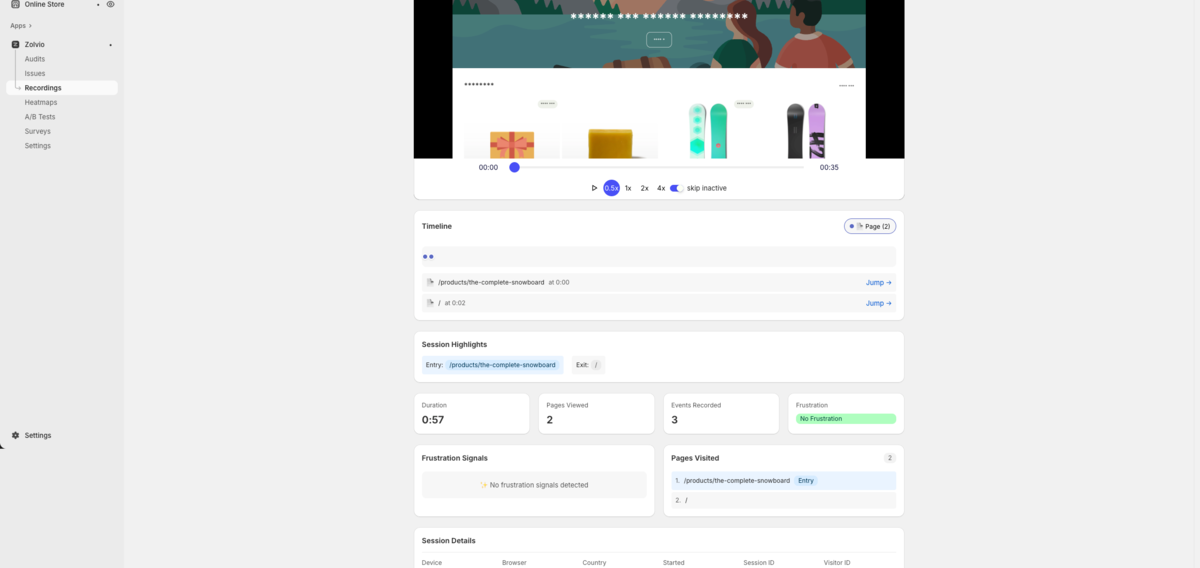
Use the timeline to jump to moments that matter
Screenshot placeholder
1200×650px •
/docs-images/recordings/session-player-timeline-1200x650.pngAdd a file at this path to replace the placeholder.
Timeline markers help you skip straight to key moments (page views, frustration events, errors). When you’re trying to answer “what went wrong?”, this is much faster than watching from the start.
Operationalize: tags, notes, and review queue

Screenshot placeholder
1200×650px •
/docs-images/recordings/tags-notes-1200x650.pngAdd a file at this path to replace the placeholder.
- Tags: label sessions like “checkout friction”, “pricing confusion”, “mobile layout”.
- Notes: add the hypothesis (“CTA not visible on mobile”) and the next action.
- Review queue: create a small queue of sessions to revisit after you ship a change.