Session Recordings Setup
Enable the theme extension, verify data capture, and confirm your consent flow.
Prerequisites
- You have installed the Zolvio app on your Shopify store
- You can edit your store theme in Shopify
- You have (or plan to add) a consent banner appropriate for your region
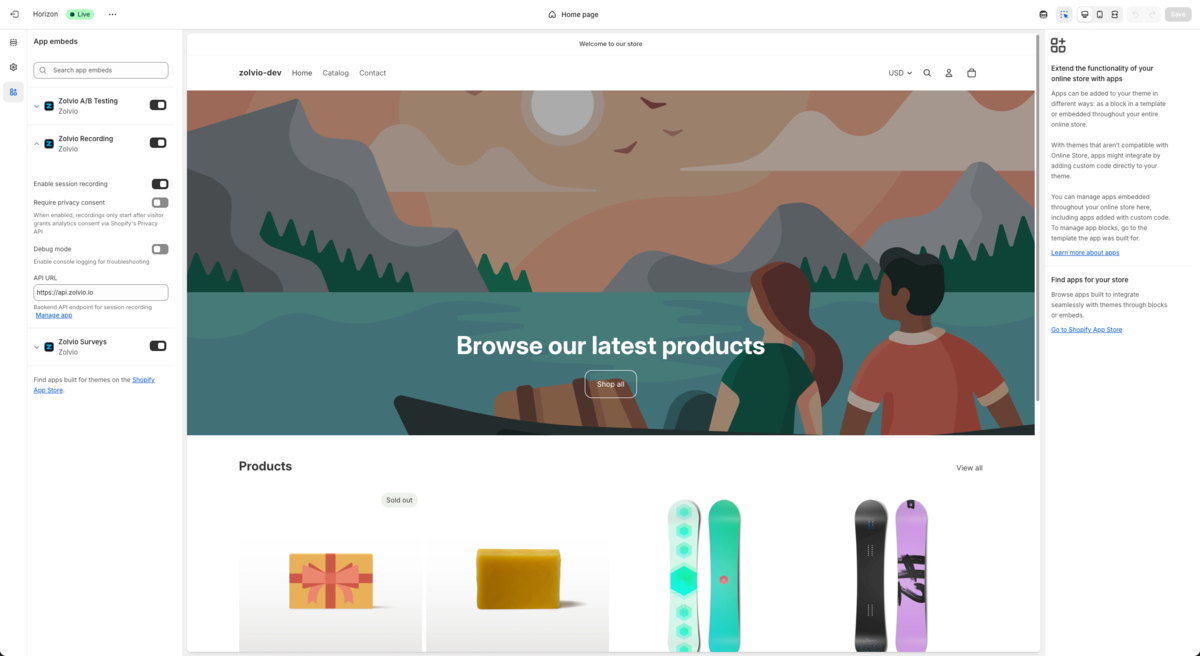
Screenshot placeholder
1200×750px •
/docs-images/recordings/theme-editor-recording-embed-1200x750.pngAdd a file at this path to replace the placeholder.
Enable the Theme Extension
- In Shopify admin, go to Online Store → Themes
- Click Customize
- Open App embeds (or the equivalent for your theme)
- Enable Zolvio Recording
- Save your theme
Consent module
Zolvio loads a consent resolver on the storefront to respect excluded pages and visitor consent. If consent cannot be resolved, recording should stay disabled by default.
Verify It’s Working
- Open your storefront in an incognito window (to simulate a new visitor)
- Navigate a few pages and click around
- Open Zolvio → Sessions and look for a new session
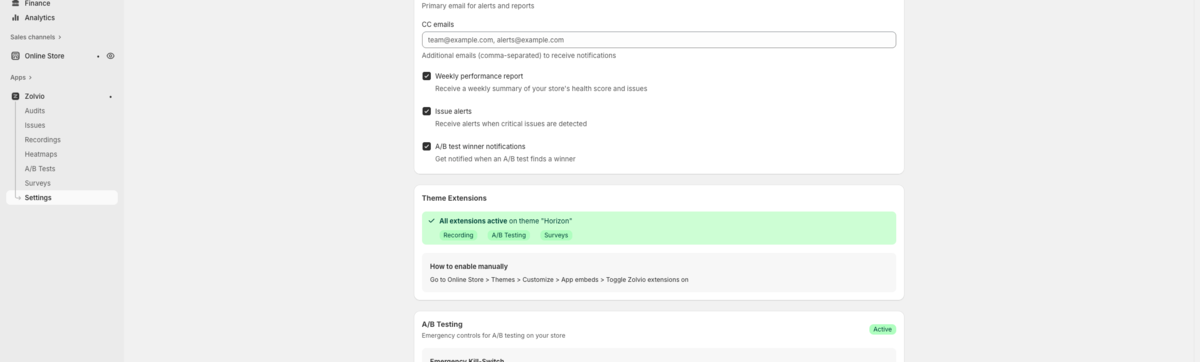
Screenshot placeholder
1200×520px •
/docs-images/recordings/extension-status-banner-1200x520.pngAdd a file at this path to replace the placeholder.
Common Setup Issues
- No sessions appear: check consent configuration and that the theme embed is saved. See Troubleshooting.
- Only some visitors record: your plan may apply sampling. See Sampling & Retention.