Heatmap Segmentation
Segment heatmaps to answer “for which visitors is this happening?” and avoid optimizing for the wrong traffic.

Start with “All devices”, then drill down
Most stores don’t have enough traffic for meaningful tablet-only analysis. Start with an All devices view to spot patterns quickly, then drill down into desktop and mobile to validate that the pattern holds.
Confidence matters
Zolvio can show heatmap data even when sample size is low, but it should warn you. Use insights (dead zones, drop-offs) only when sample size is high enough to trust.
Common segmentation dimensions
- Device: desktop vs mobile behavior often differs (tap targets, sticky CTAs, scroll depth).
- Visitors: new vs returning visitors can click very differently.
- Traffic source: search vs social vs direct often has different intent and scroll depth.
- Heatmaps cover the last 30 days by default; switch the period to 7 or 90 days. If you changed a page’s layout recently, refresh the screenshot so the overlay matches the current design.
A/B tests: filter by variant
When an A/B test runs on the page, a Compare variants control appears on the heatmap. Use it to explain why a result changed: did Variant A push clicks to the CTA? Did it reduce rage clicks? Did it move attention above the fold?
See A/B: Heatmaps & Recordings for the full workflow.
From heatmap to proof: watch examples
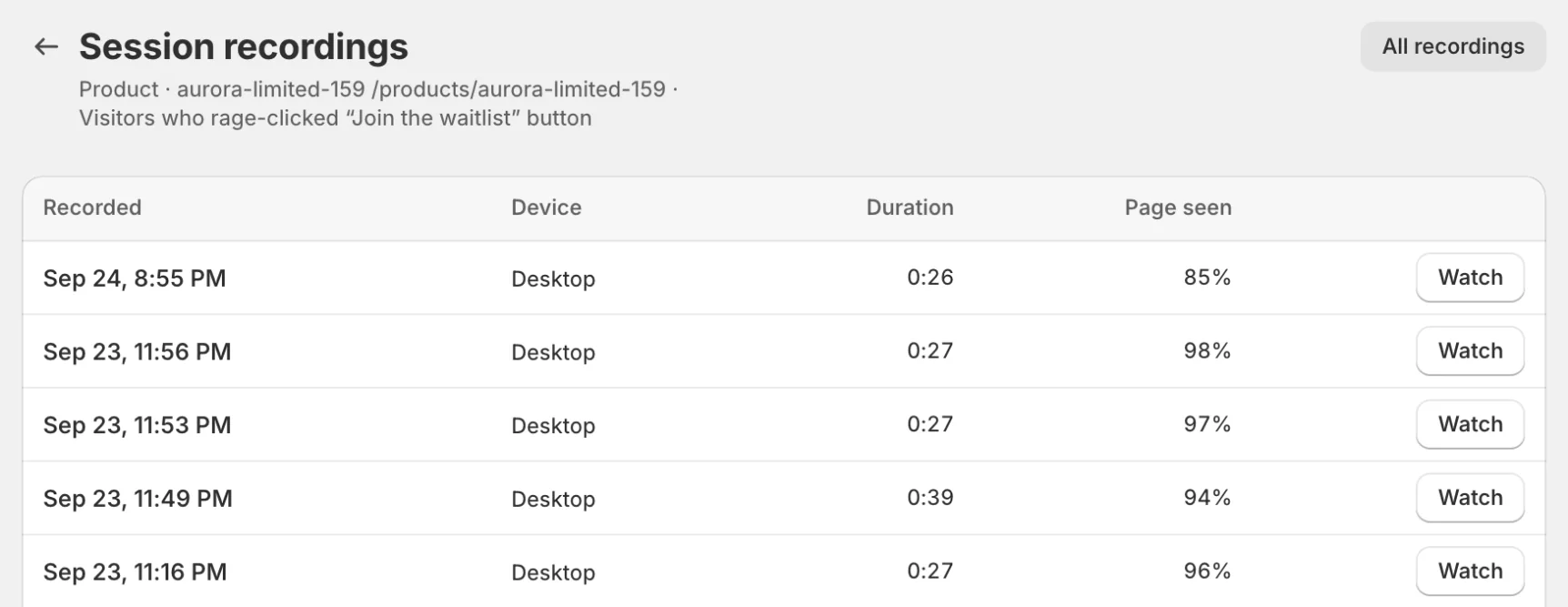
The fastest way to build confidence is to jump from a hotspot or dead zone to real recordings that match that behavior.
- Open a heatmap for a key page (homepage, collection, product).
- Once the page has enough data, the Insights card lists areas visitors saw but didn’t click; click Watch examples on one. Or select an element in Top clicked elements and click Watch recordings.
- Review 5–10 sessions and confirm the pattern is real (and not noise).
- Apply a guided fix and re-check in a few days.
Troubleshooting
- If you see “no data”, first confirm recording is enabled and consent is configured.
- If screenshots don’t match your current theme, refresh the screenshot and check screenshot limitations.
- If you changed the page layout recently, refresh the screenshot and give the new layout a few days of data.